> For the complete documentation index, see [llms.txt](https://docs.panther.com/llms.txt). Markdown versions of documentation pages are available by appending `.md` to page URLs; this page is available as [Markdown](https://docs.panther.com/data-onboarding/data-transports/azure/blob-storage.md).
# Blob Storage Source
Onboarding Azure Blob Storage as a Data Transport log source in the Panther Console
## Overview
Panther supports configuring Azure Blob Storage as a Data Transport to pull log data directly from your Azure container, allowing you to then write detections and perform investigations on this processed data.
Data can be sent compressed (or uncompressed). Learn more about compression specifications in [Ingesting compressed data in Panther](/data-onboarding/data-transports.md#ingesting-compressed-data-in-panther).
## How to set up an Azure Blob Storage log source in Panther
To ingest logs from Azure Blob Storage, you will first verify in Azure that certain resource providers are registered for your subscription. You'll begin setting up the source in Panther, then create necessary Azure infrastructure, either using a provided Terraform template or manually in the Azure Console.
### Prerequisite
Ensure that within your Azure subscription settings, `Microsoft.EventGrid` and `Microsoft.Storage` are registered resource providers:
1. In your Azure Console, navigate to **Subscriptions**.
2. Select the subscription you will be creating your Azure resources in.
3. Within the subscription settings, click **Resource providers**.\

4. In the **Filter by name** field, search for and locate `Microsoft.EventGrid` and `Microsoft.Storage`.
* For each of these providers, ensure the **Status** column has a value of **Registered**.
{% hint style="info" %}
You do not need to have an already created storage account to follow the process below—you will create one in [Step 2](#step-2-create-required-azure-infrastructure).
{% endhint %}
### Step 1: Configure Azure Blob Storage in Panther
1. In the left-hand navigation bar of your Panther Console, click **Log Sources**.
2. In the upper right corner, click **Create New**.
3. Click the **Azure Blob Storage** tile.
4. On the **Basic Info** page, fill in the following:
* **Name**: Enter a descriptive name for your log source.
* **Log Types**: Select one or more log types to associate with this log source.
5. Click **Setup**.
6. On the **Log Format** page, select the [stream type](/data-onboarding/custom-log-types/reference.md#stream-type) of the incoming logs:
* **Auto**
* **Lines**
* **JSON**
* **JSON Array**
7. Click **Continue**.
* The **Configuration** page will load.
### Step 2: Create required Azure infrastructure
On the **Infrastructure & Configuration** page, you'll create required Azure infrastructure (either by [using a Panther-provided Terraform template](#using-the-terraform-template-to-create-azure-infrastructure), or [manually configuring resources in the Azure Console](#manually-creating-infrastructure-in-the-azure-console)) and provide configuration values to Panther.
{% tabs %}
{% tab title="Panther-provided Terraform template" %}
**Using the Terraform template to create Azure infrastructure**
{% hint style="info" %}
After creating Azure resources using the Terraform template, Panther will ingest all logs written to any container in your created storage account. Ensure that the created Azure application has permission to read from each container.
{% endhint %}
1. Click **Terraform Template** to download the [Terraform](https://github.com/panther-labs/panther-auxiliary/tree/9365346d8698e730bd623086e24ca6f2a34c4b5c/terraform/panther_azure_blob_storage_transport_type_infra) template.
* You can also find the Terraform template at [this GitHub link](https://github.com/panther-labs/panther-auxiliary/tree/9365346d8698e730bd623086e24ca6f2a34c4b5c/terraform/panther_azure_blob_storage_transport_type_infra).\

2. If you do not already have the Azure CLI installed, install it by following [Azure's How to install the Azure CLI documentation](https://learn.microsoft.com/en-us/cli/azure/install-azure-cli).
3. In a terminal, run `az login`.
4. Move the Terraform template to a new directory, and navigate to that directory.
5. Edit the `panther.tfvars` file to customize your deployment, e.g., by changing the region the infrastructure will be created in, and providing a custom storage account name.
6. Run the following Terraform commands to create the Azure resources:
1. `terraform init`
2. `terraform apply -var-file="panther.tfvars"`
7. After Terraform has finished creating the resources, copy the outputted values into the following fields in the **Provide Azure configuration** section of the Panther Console:
* **Tenant ID**
* **Client ID**
* **Storage Account Name**
* **Storage Queue Name**
* **Client Secret**
* The client secret value will be redacted in your terminal. To view it, run `terraform output secret`, and copy the value without quotation marks.
* If you're running macOS, execute `terraform output -raw secret | pbcopy` to copy the value without printing it.

8. Select whether your Azure Blob storage is in Azure Government Cloud or Public Cloud.
9. Click **Setup**, then continue to [Step 3: Verify setup in Panther](#step-3-verify-setup-in-panther).
{% endtab %}
{% tab title="Manual setup in Azure Console" %}
**Manually creating infrastructure in the Azure Console**
**Step 1: Create resource group and storage account**
1. In your Azure Console, navigate to **Subscriptions**.
2. Select the subscription you will be creating your Azure resources in.
3. Click **Resource groups**.
1. Click **+Create**.\

2. Provide values for **Name** and **Region**.
* Copy down or remember the value you provide for **Name**, as you'll need it later in this process.
3. Click **Review and create.**
4. Click **Create**.
4. Click the name of your newly created resource group.
5. Click **Create**.
6. In the search bar, enter "storage account" and within the **Storage account** tile that returns, click **Create**.\

7. On the **Create a storage account** page, in the **Instance details** section, enter values for **Storage account name** and **Region**.
1. Click **Review** .\

2. Click **Create**.
**Step 2: Add app registration and client secret**
1. In the top search bar, search for "Microsoft Entra ID" and click on **Microsoft Entra ID**.
2. Click **+Add**, and in the dropdown menu that populates, **App registration**.\

1. Enter a **Name**.
2. Click **Register**.
3. Securely copy and store the **Application (client) ID** value, as you'll need it later in this process.
3. Click on your newly registered app.
4. On the right hand side, click **Add a certificate or secret**.\

5. Click **+New client secret**.
1. Provide a **Description**.
2. Click **Add**.
3. Securely copy and store the **Client Secret** **value**, as you'll need it later in this process.
**Step 3: Create queue and add permission**
1. Navigate to your newly created storage account.
2. In the left-hand navigation bar, select **Queues**.
1. Click **+Queue** to create a new queue.\

2. Enter a **Name** for the queue.
* Copy down or remember the value you provide for **Name**, as you'll need it later in this process.
3. Click **Ok**.
3. Click on your newly created queue, then in the left-hand navigation bar, click **Access Control (IAM)**.
1. Click **+Add**, then **Add Role Assignment**.
2. Search for "Storage Queue Data Message Processor" and select the matching role that populates.
3. Click on the **Members** tab.
4. Click **+Select Members**.
5. Search for the name of your registered app created in [Step 2](#step-2-add-app-registration-and-client-secret), and click **Select**.
6. Click **Review+Assign**.
**Step 4: Create system topic and event subscription**
1. In the top search bar, search for "Event Grid System Topics" and click on the matching page that populates.
1. Click **+Create**.
2. On the **Create Event Grid System Topic** page, fill in the following fields:
* **Topic Types**: Select **Storage Accounts (Blob & GPv2)**.
* **Subscription**: Select the subscription you created your resource group in during [Step 1](#step-1-create-resource-group-and-storage-account).
* **Resource Group**: Select the resource group you created in [Step 1](#step-1-create-resource-group-and-storage-account).
* **Resource**: Select the storage account you created in [Step 1](#step-1-create-resource-group-and-storage-account).
* **Name**: Enter a descriptive topic name.\

3. Click **Review+create**.
4. Click **Create**.
2. Navigate back to your storage account.
3. In the left-hand navigation bar, click **Events** then **+Event Subscription**.
4. On the **Create Event Subscription** page, provide values for the following fields:
1. In the **Event Subscription Details** section, enter a **Name**.
2. In the **Event Types** section, for the **Filter to Event Types** field, select **Blob Created**.
3. In the **Endpoint Details** section, make the following selections:
* **Endpoint Type**: Select **Storage Queue**.
* **Endpoint**: Select the queue you created in [Step 3](#step-3-create-queue-and-add-permission).

4. Click **Create**.
**Step 5: Create container and add permission**
{% hint style="info" %}
If you already have a container created, you only need to grant read permissions to the application you created in [Step 2](#step-2-add-app-registration-and-client-secret). In the instructions set below, start with Step 3.
Note that you will not need to provide information about this container to Panther, as all logs written to any container in your created storage account will be ingested.
{% endhint %}
1. Navigate to your newly created storage account.
2. In the left-hand navigation bar, select **Containers**.
1. Click **+Container** to create a new container.\

2. Enter a **Name** for the container.
* Copy down or remember the value you provide for **Name**, as you'll need it later in this process.
3. Click **Create**.
3. Click on your newly created container, then in the left-hand navigation bar, click **Access Control (IAM)**.
1. Click **+Add**.\

2. Click **Add Role Assignment**.
3. Search for "Storage Blob Data Reader" and select the matching role that populates.\

4. Click on the **Members** tab.
5. Click **+Select Members**.
6. Search for the name of the registered app you created in [Step 2](#step-2-add-app-registration-and-client-secret), and click **Select**.
7. Click **Review+Assign**.
**Step 6: Copy Azure configuration values back into the Panther Console**
1. Return to the **Infrastructure & Configuration** page in your Panther Console.
2. In the **Provide Azure configuration** section, copy in values for the following fields:
* **Tenant ID**: This value can be found on your Azure Console's **Microsoft Entra ID** home page.
* **Client ID**: The application (client) ID generated in [Step 2](#step-2-add-app-registration-and-client-secret).
* **Storage Account Name**: The name you gave your storage account in [Step 1](#step-1-create-resource-group-and-storage-account).
* **Storage Queue Name**: The name you gave your queue in [Step 3](#step-3-create-queue-and-add-permission).
* **Client Secret**: The client secret value generated in [Step 2](#step-2-add-app-registration-and-client-secret).\

3. Select whether your Azure Blob storage is in Azure Government Cloud or Public Cloud.
4. Click **Setup**, then continue to [Step 3: Verify setup in Panther](#step-3-verify-setup-in-panther).
{% endtab %}
{% endtabs %}
### Step 3: Verify setup in Panther
You will be directed to a success screen:
* You can optionally enable one or more [Detection Packs](https://docs.panther.com/detections/panther-managed/packs).
* If you have not done so already, click **Attach or Infer Schemas** to attach one or more schemas to the source.
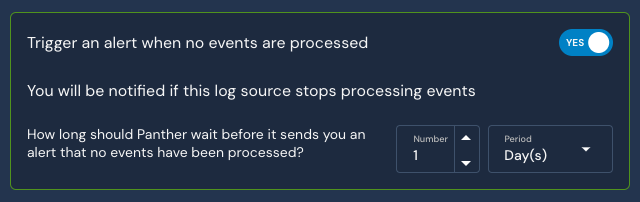
* The **Trigger an alert when no events are processed** setting defaults to **YES**. We recommend leaving this enabled, as you will be alerted if data stops flowing from the log source after a certain period of time. The timeframe is configurable, with a default of 24 hours.
### Add new logs to the log source
To add additional Azure log types to the log source, you can follow the steps outlined in our [Azure Monitor Logs documentation](https://docs.panther.com/data-onboarding/supported-logs/azure-monitor?q=azure#step-2-export-azure-monitor-logs).
## Viewing ingested logs
After your log source is configured, you can search ingested data using [Search](/search/search-tool.md) or [Data Explorer](/search/data-explorer.md).
---
# Agent Instructions
This documentation is published with GitBook. GitBook is the documentation platform designed so that both humans and AI agents can read, navigate, and reason over technical content effectively. Learn more at gitbook.com.
## Querying This Documentation
If you need additional information that is not directly available in this page, you can query the documentation dynamically by asking a question.
Perform an HTTP GET request on the current page URL with the `ask` query parameter, and the optional `goal` query parameter:
```
GET https://docs.panther.com/data-onboarding/data-transports/azure/blob-storage.md?ask=&goal=
```
`ask` is the immediate question: it should be specific, self-contained, and written in natural language.
`goal` is optional and describes the broader end goal you are ultimately trying to accomplish on behalf of the user. GitBook uses it to tailor the answer towards what is most useful for that goal.
The response will contain a direct answer to the question and relevant excerpts and sources from the documentation.
Use this mechanism when the answer is not explicitly present in the current page, you need clarification or additional context, or you want to retrieve related documentation sections.