> For the complete documentation index, see [llms.txt](https://docs.panther.com/llms.txt). Markdown versions of documentation pages are available by appending `.md` to page URLs; this page is available as [Markdown](https://docs.panther.com/enrichment/okta.md).
# Okta Profiles
Fetch and store Okta user and device data to use in detections and search
## Overview
You can configure your Okta log source integration in Panther to pull [user profiles](#okta.users) and [device profiles](#okta.devices) into Panther-managed Enrichment. This means you can use profile and device data in detection logic and search queries.
You can customize user profiles in Okta by following [their documentation](https://help.okta.com/en-us/Content/Topics/users-groups-profiles/usgp-add-custom-user-attributes.htm). You might consider adding custom attributes that would be useful in detection logic, such as the level of permissions expected for that user.
Learn how to [view stored enrichment data here](/enrichment.md#viewing-and-managing-enrichments).
### Example detection use cases
You can leverage Okta user and device profile data in your detections. See the following example use cases:
* Detect when the device an action is taken from is a phone and the actor is not a System Administrator.
* Detect when an action is performed by a terminated employee, which can indicate that off-boarding is incomplete.
* In a detection's configuration, adjust the alert severity level based on the job title of the event actor. For example, you might use an `INFO` severity level if some action is taken by a System Administrator, but `HIGH` if taken by a user with any other role.
## How to set up Okta user and device profiles in Panther
You can configure Okta user and device profiles while you are initially setting up your Okta log source integration in Panther, or later, by editing the source.
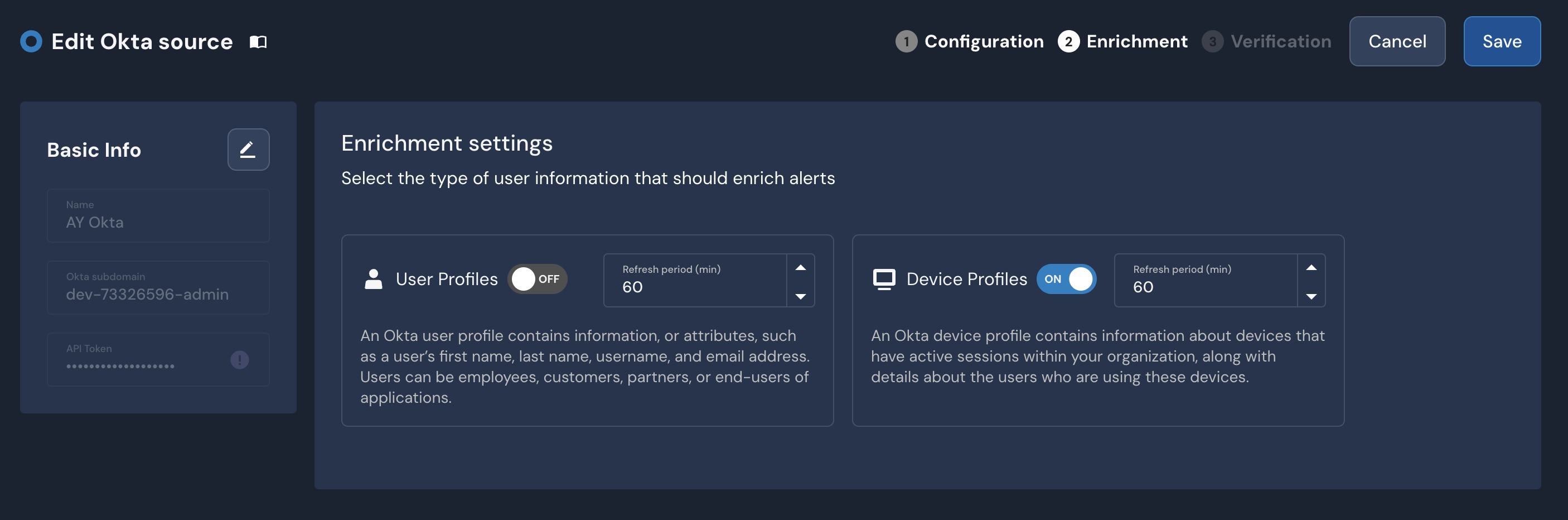
During either flow, you'll toggle the Okta profile pulling settings on, then set the cadence at which you'd like profile data to be refreshed.
{% hint style="info" %}
In order to enable Okta user and/or device profiles in Panther, you must first (or concurrently) onboard Okta as a log source. It is not possible to set up an Okta device or user profiles integration *without* onboarding Okta as a log source in Panther.
{% endhint %}
### Prerequisite for Okta device profiles
* In order to pull Okta device profiles into Panther, you must have [Okta Devices](https://www.okta.com/platform/devices/) enabled.
### Configure Okta profiles in Panther during Okta source setup
* Follow [these instructions on how to create a new Okta source in Panther](/data-onboarding/supported-logs/okta.md#how-to-onboard-okta-logs-to-panther), paying close attention to the **Enable user profiles** and **Enable device profiles** fields.
### Configure Okta profiles in Panther after Okta source setup
You can set up Okta profiles after you've already created an Okta log source in Panther, either [from the **Enrichment Providers** tab](#configure-okta-profiles-after-okta-log-source-setup-from-the-enrichment-providers-screen) or [the **Log Sources** tab](#configure-okta-profiles-after-okta-log-source-setup-from-the-log-sources-screen) in the Console.
{% tabs %}
{% tab title="Console: Enrichment Providers" %}
**Configure Okta profiles after Okta log source setup from the Enrichment Providers screen**
1. In the left-hand navigation bar of your Panther Console, click **Enrichments**.
2. In the upper-right corner, click **Create New**.
3. Click **Okta**.
4. From the popup modal listing your already created Okta log sources in Panther, click the one you'd like to pull profile data from.\

* If you have not already set up an Okta log source, instead follow the [How to onboard Okta logs to Panther](/data-onboarding/supported-logs/okta.md#how-to-onboard-okta-logs-to-panther) instructions.
5. On the **Enrichment** page, click the toggle to the right of **User Profiles** and/or **Device Profiles** `ON`.
* For each of the toggles you turned `ON`, set a **Refresh period (min)**. This represents the cadence at which Panther will update profile data with what is stored in Okta.
6. In the upper-right corner, click **Save**.
{% endtab %}
{% tab title="Console: Log Sources" %}
**Configure Okta profiles after Okta log source setup from the Log Sources screen**
1. In the left-hand navigation bar of your Panther Console, click **Log Sources**.
2. Locate the Okta log source for which you'd like to set up profiles, and click its name.
3. In the upper right corner of the log source page, click **Configuration,** then **Edit.**\

4. In the upper-right corner, click **Enrichment**.
5. On the **Enrichment** page, click the toggle to the right of **User Profiles** and/or **Device Profiles** `ON`.
* For each of the toggles you turned `ON`, set a **Refresh period (min)**. This represents the cadence at which Panther will update profile data with what is stored in Okta.
6. In the upper-right corner, click **Save**.
{% endtab %}
{% endtabs %}
## Supported profile types
Panther supports pulling [user profiles](#okta.users) and [device profiles](#okta.devices) from Okta. Below are the schemas for how the data for each profile type is structured.
### Okta.Users
```yaml
schema: Okta.Users
description: Panther managed Okta user profiles
referenceURL: https://developer.okta.com/docs/reference/api/users/#list-users
fields:
- name: match
description: Keys to match for the lookup table
type: array
element:
type: string
- name: id
description: Okta internal id for this user
type: string
indicators:
- actor_id
- name: created
description: Create time for user record
type: timestamp
timeFormats:
- rfc3339
- name: activated
description: Activation time for user record
type: timestamp
timeFormats:
- rfc3339
- name: statusChanged
description: Time when user status changed
type: timestamp
timeFormats:
- rfc3339
- name: lastLogin
description: Time of last authentication
type: timestamp
timeFormats:
- rfc3339
- name: lastUpdated
description: Time of last record update
type: timestamp
timeFormats:
- rfc3339
- name: passwordChanged
description: Time of last password change
type: timestamp
timeFormats:
- rfc3339
- name: status
description: Status of the user
type: string
- name: profile
description: Okta user profile
type: json
```
### Okta.Devices
```yaml
schema: Okta.Devices
description: Panther managed Okta device profile
referenceURL: https://developer.okta.com/docs/reference/api/devices/#list-devices
fields:
- name: match
description: Keys to match for the lookup table
type: array
element:
type: string
- name: id
description: Okta internal id for this device
type: string
- name: created
description: Create time for device record
type: timestamp
timeFormats:
- rfc3339
- name: lastUpdated
description: Time of last record update
type: timestamp
timeFormats:
- rfc3339
- name: status
description: Status of the device
type: string
- name: resourceType
description: Type of the device
type: string
- name: resourceDisplayName
description: Name of the device
type: object
fields:
- name: value
description: Name of the device
type: string
- name: sensitive
description: True if sensitive
type: boolean
- name: resourceId
description: External id of the device
type: string
- name: resourceAlternateId
description: Alternate external id of the device
type: string
- name: profile
description: Okta device profile
type: json
- name: users
description: Associated users of this device
type: array
element:
type: object
fields:
- name: id
description: Okta internal id for this user
type: string
indicators:
- actor_id
- name: emails
description: Emails associated with this user
type: array
element:
type: string
indicators:
- email
```
## Example: Using Okta profile data in a detection
Once you have set up an Okta user or device profile, and it has fetched data, you can start referencing that data in detection logic.
Given this Okta user profile:
```json
{
"activated": "2023-02-22 20:14:57",
"created": "2023-02-22 20:14:57",
"id": "00u7364cqlAxlJrgX1d7",
"lastlogin": "2023-02-22 20:28:05",
"lastupdated": "2023-02-22 20:27:57",
"match": [
"00u7364cqlAxlJrgX1d7",
"henry.ford@panther.com"
],
"p_any_actor_ids": [
"00u7364cqlAxlJrgX1d7"
],
"p_any_emails": [
"henry.ford@panther.com"
],
"p_event_time": "2023-06-01 20:48:36.12",
"p_log_type": "Okta.Users",
"p_parse_time": "2023-06-01 20:48:36.12",
"p_row_id": "623cde25b9568494cebbdfc118a310",
"p_schema_version": 0,
"passwordchanged": "2023-02-22 20:27:57",
"profile": {
"email": "henry.ford@panther.com",
"firstName": "Henry",
"lastName": "Ford",
"login": "henry.ford@panther.com",
"manager": "Joe Jacobs",
"mobilePhone": null,
"secondEmail": null
},
"status": "ACTIVE",
"statuschanged": "2023-02-22 20:27:57"
}
```
And this incoming event:
```json
{
"actorEmail": "henry.ford@panther.com",
"action": "deleted_file"
}
```
Before going through detections, the event will be enriched with Okta profile data to become:
```json
{
"actorEmail": "henry.ford@panther.com",
"action": "deleted_file",
"p_enrichment": {
"okta_users": {
"actorEmail": {
"p_match": "henry.ford@panther.com",
"activated": "2023-02-22 20:14:57",
"created": "2023-02-22 20:14:57",
"id": "00u7364cqlAxlJrgX1d7",
"lastlogin": "2023-02-22 20:28:05",
"lastupdated": "2023-02-22 20:27:57",
"match": [
"00u7364cqlAxlJrgX1d7",
"henry.ford@panther.com"
],
"p_any_actor_ids": [
"00u7364cqlAxlJrgX1d7"
],
"p_any_emails": [
"henry.ford@panther.com"
],
"passwordchanged": "2023-02-22 20:27:57",
"profile": {
"email": "henry.ford@panther.com",
"firstName": "Henry",
"lastName": "Ford",
"login": "henry.ford@panther.com",
"manager": "Joe Jacobs",
"mobilePhone": null,
"secondEmail": null
},
"status": "ACTIVE",
"statuschanged": "2023-02-22 20:27:57"
}
}
}
}
```
You can then write a detection that references Okta profile data, like this:
{% tabs %}
{% tab title="Python" %}
```python
def rule(event):
userManager = deep_get(event, 'p_enrichment', 'okta_users', 'actorEmail', 'profile', 'manager')
return userManager == 'Joe Jacobs'
```
{% endtab %}
{% tab title="YAML" %}
```yaml
Detection:
- Enrichment:
Table: okta_users
Selector: actorEmail
FieldPath: profile.manager
Condition: Equals
Value: Joe Jacobs
```
{% endtab %}
{% endtabs %}
---
# Agent Instructions
This documentation is published with GitBook. GitBook is the documentation platform designed so that both humans and AI agents can read, navigate, and reason over technical content effectively. Learn more at gitbook.com.
## Querying This Documentation
If you need additional information that is not directly available in this page, you can query the documentation dynamically by asking a question.
Perform an HTTP GET request on the current page URL with the `ask` query parameter, and the optional `goal` query parameter:
```
GET https://docs.panther.com/enrichment/okta.md?ask=&goal=
```
`ask` is the immediate question: it should be specific, self-contained, and written in natural language.
`goal` is optional and describes the broader end goal you are ultimately trying to accomplish on behalf of the user. GitBook uses it to tailor the answer towards what is most useful for that goal.
The response will contain a direct answer to the question and relevant excerpts and sources from the documentation.
Use this mechanism when the answer is not explicitly present in the current page, you need clarification or additional context, or you want to retrieve related documentation sections.