# 사용자 지정 Webhook 대상

## 개요

대상은 룰, 정책, 시스템 상태 알림, 룰 오류로부터 알러트를 수신하는 통합입니다. Panther는 알러트를 수신할 대상으로 Custom Webhook을 구성할 수 있도록 지원합니다.

Custom Webhook 대상에는 다음만 필요합니다 `URL` HTTP `POST` 요청을 수락할 수 있는 서비스에 대한 `JSON` 페이로드. 이 대상 유형은 Panther가 다른 타사 통합과 통신할 수 있도록 설계되었습니다.

## Panther에서 Custom Webhook 알러트 대상을 설정하는 방법

### Panther에서 오는 웹훅 호출 인증하기

Panther의 웹훅 호출로 전달 위치에 인증 자격 증명을 전달하려면 사용자 지정 HTTP 헤더를 추가할 수 있습니다.  [웹훅 설정](#set-up-a-custom-webhook-in-panther) 중에 하나 이상의 **헤더 이름** / **헤더 값** 쌍을.

### 전달 및 Ack

웹훅은 Panther의 `POST` 요청을 HTTP 상태 코드 `2XX` 범위 내의 상태 코드로 수락하고 확인해야 합니다. 네트워크 오류 또는 비 `2XX` 코드가 있었다면 Panther는 영구 실패 전에 최대 10회까지 요청을 재시도합니다.

웹훅 응답 본문은 전달 상태에 저장되며, 알러트 세부 정보 페이지에서 확인할 수 있습니다.

영구 전달 실패가 발생한 경우, Panther는 알러트 세부 정보 페이지를 방문하여 전달 상태 섹션을 확인함으로써 알러트를 수동으로 다시 보낼 수 있게 하여 로그를 남기고 워크플로 연속성을 제공합니다.

### Panther에서 사용자 지정 웹훅 설정하기

1. Panther Console에 로그인합니다.
2. 왼쪽 사이드바에서 **구성 > 알러트 대상**.
3. 다음을 클릭합니다. **+첫 번째 대상 추가**.
   * 이미 대상이 만들어져 있다면, 페이지 오른쪽 상단에서 **Create New** 를 클릭하여 새 대상을 추가합니다.
4. 다음을 클릭합니다. **Custom Webhook**.
5. 다음 양식을 작성합니다:
   * **표시 이름**: 대상 식별을 위한 친숙한 이름을 추가합니다.
   * **Custom Webhook URL**: 사용자 지정 Webhook 전달 URL을 입력합니다.
     * 다음을 따른다면 [ngrok 예제](#custom-webhook-example) 를 이 문서의 후반부에서, 다음을 입력하게 됩니다. `http` 또는 `https` **Forwarding** URL from the `ngrok` 출력.
   * **심각도 수준**: 이 대상로 보낼 알러트의 심각도 수준을 선택합니다.
   * **기본 알러트 유형**: 이 대상로 보낼 알러트 유형을 선택합니다.
   * **로그 유형**: 기본적으로 모든 로그 유형에서 알러트를 보냅니다. 특정 로그 유형에서만 알러트를 보내려면 여기에서 로그 유형을 지정하세요.
   * **수동 전송 허용**: 이 토글을 ON으로 설정하면 [알러트를 수동으로 전송할 수 있습니다](https://docs.panther.com/alerts#manual-alert-dispatch) 이 대상에.\
     ![In the Panther Console, the "Configure your Custom Webhook Destination" page is displayed. It contains fields for Display Name, Custom Webhook URL, Severity, Alert Types, and Log Types.](https://2400888838-files.gitbook.io/~/files/v0/b/gitbook-x-prod.appspot.com/o/spaces%2F-LgdiSWdyJcXPahGi9Rs-2910905616%2Fuploads%2Fgit-blob-8e188f7744fc15b555724ac79f1fcfaa467c6f5c%2FScreen%20Shot%202022-08-31%20at%2011.28.01.png?alt=media)
   * **사용자 지정 HTTP 헤더**: 선택적으로 알러트를 전송하는 POST 요청에 포함할 하나 이상의 사용자 지정 HTTP 헤더를 제공할 수 있습니다.\
     ![Next to "Add custom HTTP headers?" the toggle is set to "yes."](https://2400888838-files.gitbook.io/~/files/v0/b/gitbook-x-prod.appspot.com/o/spaces%2F-LgdiSWdyJcXPahGi9Rs-2910905616%2Fuploads%2Fgit-blob-83ab7562c0ddf9356b1d42d3c7210579f6bf60c4%2Fimage.png?alt=media)
6. 다음을 클릭합니다. **대상 추가**.
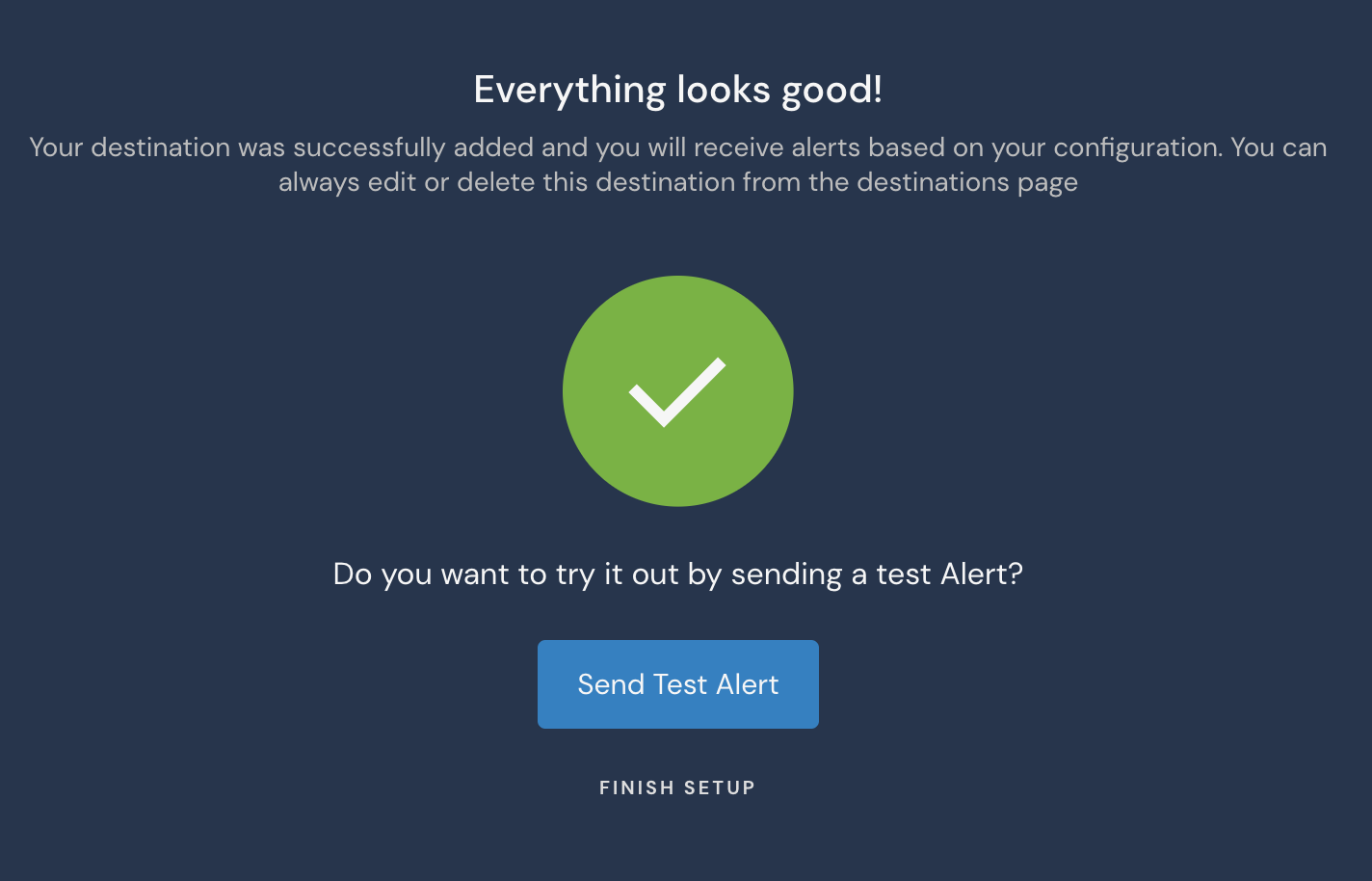
7. 마지막 페이지에서 선택적으로 **테스트 알러트 전송** 을 클릭하여 테스트 페이로드를 사용해 통합을 테스트합니다. 완료되면 **설정 완료**.

<figure><img src="https://2400888838-files.gitbook.io/~/files/v0/b/gitbook-x-prod.appspot.com/o/spaces%2F-LgdiSWdyJcXPahGi9Rs-2910905616%2Fuploads%2Fgit-blob-36c350cbbc4624e1ee9632f5c8fad969e128034d%2Fwebhook3.png?alt=media" alt="The screen displays a large green circle with a checkmark in it. A message at the top says &#x22;Everything looks good!&#x22; There is a blue button at the button labeled &#x22;Send Test Alert&#x22; and below that there is a link labeled &#x22;Finish Setup.&#x22;" width="563"><figcaption></figcaption></figure>

### 사용자 지정 Webhook 알러트 스키마

사용자 지정 Webhook은 다음 필드를 포함하는 페이로드를 전달합니다:

<table><thead><tr><th width="172">필드</th><th width="121.33333333333331">유형</th><th>설명</th></tr></thead><tbody><tr><td><code>id</code></td><td><code>string</code></td><td>알러트의 디택션 식별자</td></tr><tr><td><code>createdAt</code></td><td><code>string</code></td><td>AWSDateTime 형식의 알러트 생성 시간(ISO-8601)</td></tr><tr><td><code>severity</code></td><td><code>string</code></td><td>알러트의 심각도</td></tr><tr><td><code>type</code></td><td><code>string</code></td><td>알러트 유형</td></tr><tr><td><code>link</code></td><td><code>string</code></td><td>Panther Console의 알러트 링크</td></tr><tr><td><code>title</code></td><td><code>string</code></td><td>알러트 제목</td></tr><tr><td><code>name</code></td><td><code>string</code></td><td>알러트의 디택션 이름</td></tr><tr><td><code>alertId</code></td><td><code>string</code></td><td>Panther Backend의 알러트 식별자</td></tr><tr><td><code>description</code></td><td><code>string</code></td><td>알러트와 연결된 설명</td></tr><tr><td><code>runbook</code></td><td><code>string</code></td><td>알러트와 연결된 런बुक</td></tr><tr><td><code>tags</code></td><td><code>string[]</code></td><td>알러트와 연결된 태그 목록</td></tr><tr><td><code>version</code></td><td><code>string</code></td><td>알러트의 디택션 버전 식별자</td></tr><tr><td><code>alertContext</code></td><td><code>object</code></td><td><a href="../../../detections/rules/python#alert_context">알러트 컨텍스트</a> 알러트에 첨부된 데이터</td></tr></tbody></table>

해당 [AWSDateTime](https://docs.aws.amazon.com/appsync/latest/devguide/scalars.html) 스칼라 타입은 유효한 확장 ISO 8601 DateTime 문자열을 나타냅니다. 즉, 이 스칼라 타입은 다음 형식의 datetime 문자열을 स्वीकार합니다 `YYYY-MM-DDThh:mm:ss.sssZ`. 초 필드 뒤의 필드는 나노초 필드입니다. 1\~9자리 숫자를 허용할 수 있습니다. 초 및 나노초 필드는 선택 사항입니다(나노초 필드를 사용하려면 초 필드를 지정해야 합니다). 이 스칼라에서는 시간대 오프셋이 필수입니다. 시간대 오프셋은 Z(UTC 시간대)를 나타내거나 다음 형식이어야 합니다 `±hh:mm:ss`. 시간대 오프셋의 초 필드는 ISO 8601 표준의 일부는 아니지만 유효한 것으로 간주됩니다.

#### 예시 JSON 페이로드:

```json
{
  "id": "AllLogs.IPMonitoring",
  "createdAt": "2020-10-13T03:35:24Z",
  "severity": "INFO",
  "type": "룰",
  "link": "https://runpanther.io/alerts/b90c19e66e160e194a5b3b94ec27fb7c",
  "title": "새 알러트: [123.123.123.123]에서 의심스러운 트래픽이 디택션됨",
  "name": "의심스러운 IP 모니터링",
  "alertId": "b90c19e66e160e194a5b3b94ec27fb7c",
  "alertContext": {
    "key": "value" // alertContext 내용은 디택션에서 구성됩니다
  },
  "description": "이 룰은 IP 주소 화이트리스트 외부의 모든 활동에 대해 알러트합니다",
  "runbook": "",
  "tags": [
    "네트워크 모니터링",
    "Threat Intel"
  ],
  "version": "CJm9PiaXV0q8U0JhoFmE6L21ou7e5Ek0"
}
```

## 사용자 지정 웹훅 예시

다음 예시는 Panther 알러트를 사용자 지정 웹훅으로 전송하여 페이로드를 간단한 [Node.js](https://nodejs.org/en/) 서버로 전달하고, 이를 [Ngrok](https://ngrok.com/).

1. 을 통해 프록시하는 방법을 보여줍니다.
2. 명령 줄을 엽니다. [ngrok 계정을 생성하고](https://dashboard.ngrok.com/signup) 및 [설치하세요](https://ngrok.com/download) ngrok
   1. 다음 구성 명령을 실행하세요: `ngrok config add-authtoken <token>`
   2. 포트 8081에서 서비스를 시작하려면 다음 명령을 실행하세요: `ngrok http 8081`
3. [Node.js를 설치하세요](https://nodejs.org/en/download).
4. 파일을 만들고, `webhook.js`, 다음 스니펫을 붙여넣으세요:

   ```javascript
   const http = require('http')
   const util = require('util')
   const port = 8081

   const requestHandler = (req, res) => {

     if (req.method === 'POST') {
       let body = '';
       req.on('data', chunk => {
         body += chunk.toString();
       });
       req.on('end', () => {
         console.log(util.inspect(JSON.parse(body), false, null, true));
         res.statusCode = 200; // 요청을 반드시 승인해야 합니다
         res.end("success"); // (선택 사항) 응답 본문
       });
     }
   }

   const server = http.createServer(requestHandler)

   server.listen(port, (err) => {
     if (err) {
       return console.log('something bad happened', err)
     }

     console.log(`server is listening on ${port}`)
   })
   ```
5. 다른 터미널을 열고 Node.js 서버를 시작하세요:

   ```shell
   > node webhook.js
   서버가 8081에서 수신 대기 중입니다
   ```
6. 다음에서 **Panther Console**, 새 **Custom Webhook** 를 만들고 **Forwarding** 의 URL을 `ngrok` 에 붙여넣습니다 **Custom Webhook URL** 필드.
   * 예를 들어, 전달 URL은 다음과 같을 수 있습니다: `https://2d9c-174-27-211-147.ngrok-free.app`
7. 다음을 클릭합니다. **테스트 알러트를 보내** node.js 서버가 테스트 이벤트를 기록하는지 확인합니다.

## 대상에 대한 추가 정보

알러트 라우팅 순서, 대상 수정 또는 삭제, 워크플로 자동화에 대한 자세한 내용은 Panther 문서를 참조하세요: [대상](https://docs.panther.com/destinations).
