> For the complete documentation index, see [llms.txt](https://docs.panther.com/llms.txt). Markdown versions of documentation pages are available by appending `.md` to page URLs; this page is available as [Markdown](https://docs.panther.com/ko/data-onboarding/supported-logs/orca-security.md).
# Orca Security 로그
Orca Security 로그를 Panther 콘솔에 연결
## 개요
Panther가 수집하는 [Orca Security ](https://orca.security/)웹훅을 구성하여 이벤트를 Panther HTTP URL로 게시해 알러트를 전달합니다.
## Orca Security 로그를 Panther에 온보딩하는 방법
### 1단계: Panther에서 Orca Security 소스 만들기
1. Panther Console의 왼쪽 탐색 모음에서 **로그 소스**.
2. 클릭합니다 **새로 만들기**.
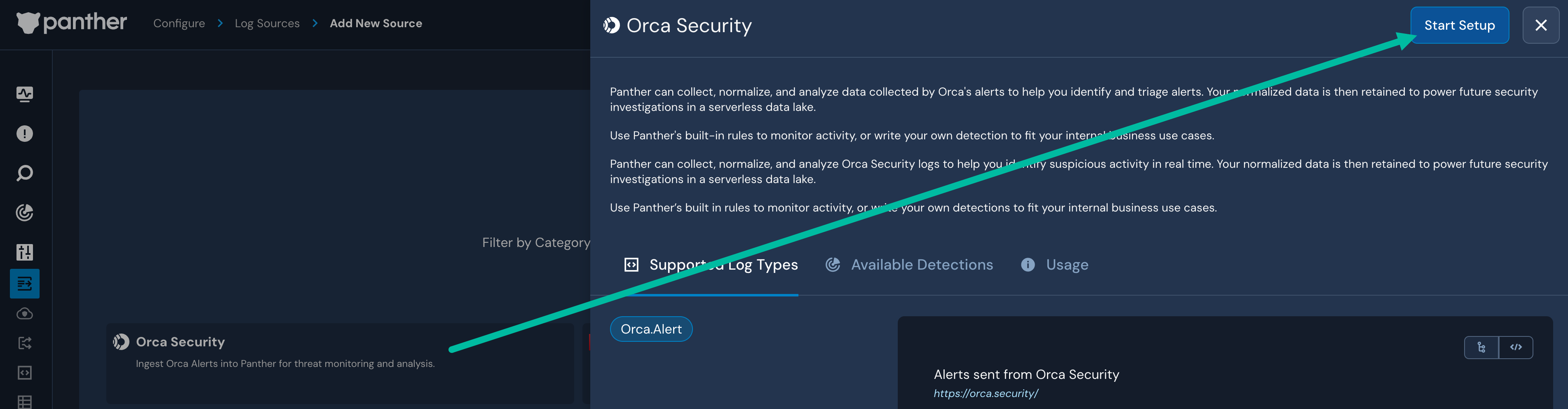
3. “Orca Security”를 검색한 다음 해당 타일을 클릭합니다.
4. 슬라이드아웃 패널에서 다음을 클릭합니다 **설정 시작**.
5. 다음을 따르세요: [HTTP 소스를 구성하기 위한 Panther의 지침](/ko/data-onboarding/data-transports/http.md#how-to-set-up-an-http-log-source-in-panther), 5단계부터 시작합니다.
* 다음의 **인증 방식**, 다음을 사용해야 합니다 [Bearer 인증](/ko/data-onboarding/data-transports/http.md#bearer). 이는 Orca Security가 지원하는 유일한 인증 방식입니다.
* 이 소스로 전송되는 페이로드는 [모든 HTTP 소스의 페이로드 요구사항](/ko/data-onboarding/data-transports/http.md#payload-requirements).
* HTTP 엔드포인트 생성이 완료될 때까지 다음 단계로 진행하지 마세요.
HTTP 소스를 만든 후 Panther Console에 HTTP Source URL이 표시됩니다. 다음 단계에서 필요하므로 이 값을 안전한 위치에 저장하세요.
### 2단계: Orca Security에서 새 Panther 통합 만들기
1. Orca Security 콘솔에서 다음으로 이동합니다 **설정** > **Integrations**.
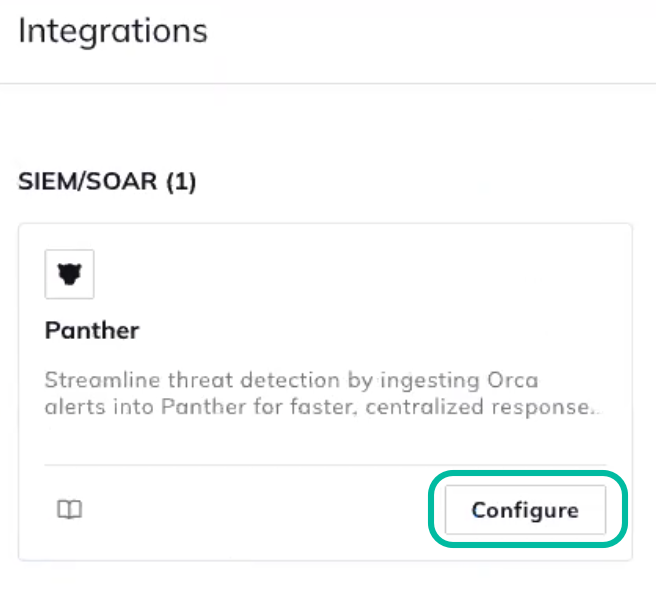
2. 오른쪽 상단 모서리의 검색창에서 "Panther"를 검색한 다음, 다음에서 **Panther** 타일을 클릭하세요: **구성**.
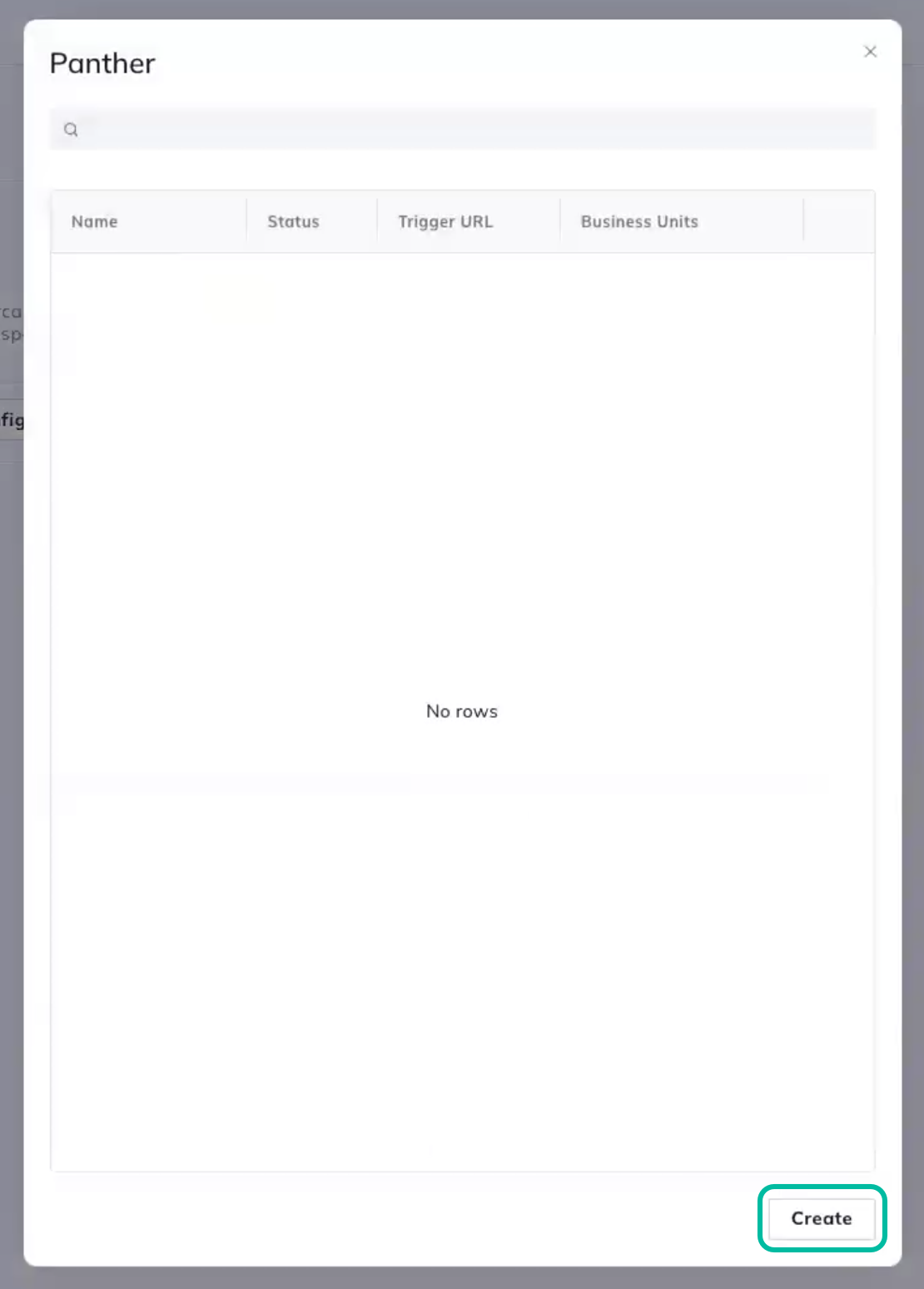
3. 다음 페이지에서 **Panther** 팝업 모달에서 다음을 클릭하세요: **생성**.
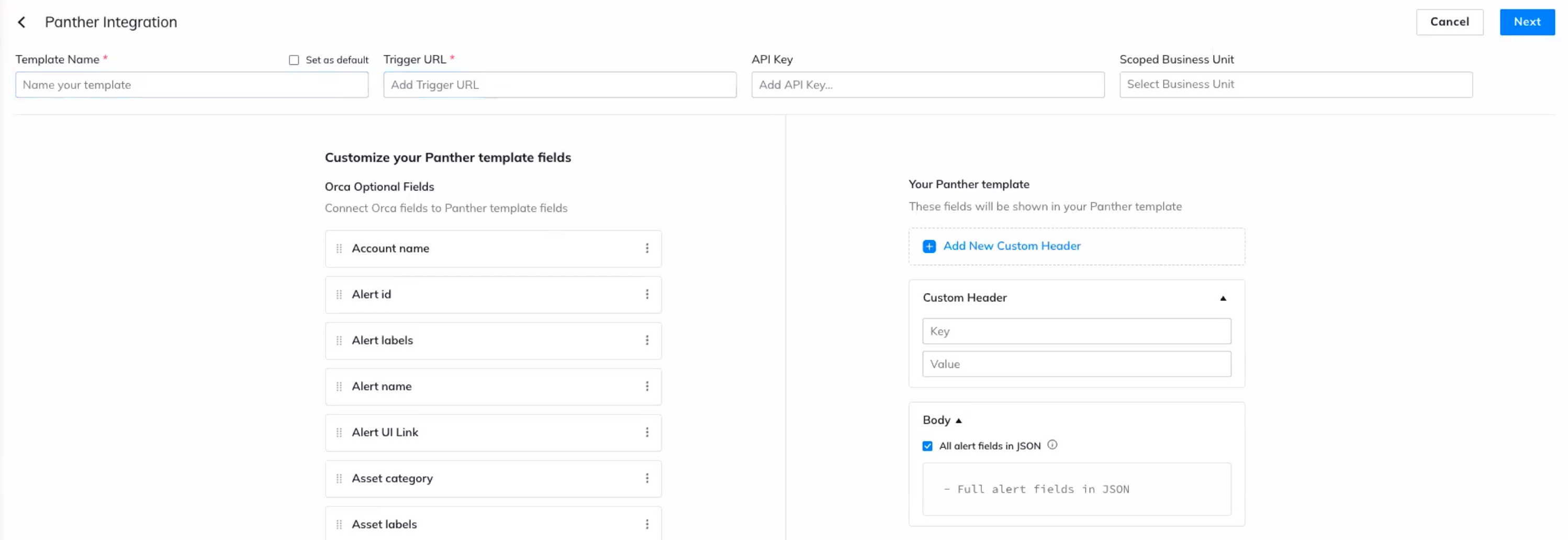
4. 아래 **Panther Integration**, 양식 필드를 입력합니다:
* **템플릿 이름**: 설명이 되는 이름을 입력합니다. 예: `Panther SIEM 통합`.
* **트리거 URL**: Panther에서 생성한 HTTP URL을 입력합니다 [1단계](#step-1-create-an-orca-security-source-in-panther).
* **API 키**: "Bearer" 다음에 공백을 입력한 다음, Panther에서 생성했거나 입력한 Bearer 토큰을 입력합니다 [1단계](#step-1-create-an-orca-security-source-in-panther). 전체 값은 다음과 같아야 합니다: `Bearer SomeTokenHere`.
* (선택 사항) 아래에서 **Panther 템플릿**, 다음을 사용자 지정합니다 **본문** 및 **사용자 지정 헤더** 에서 필드를 끌어다 놓아 내용을 구성합니다 **Orca 선택 필드** 섹션.
5. 클릭합니다 **다음**.
6. 오른쪽 상단에서 다음을 클릭합니다 **템플릿 만들기**.
### 3단계: Orca Security에서 알러트 전달 자동화하기
1. Orca 콘솔의 왼쪽 탐색 모음에서 다음을 선택합니다 **자동화**.
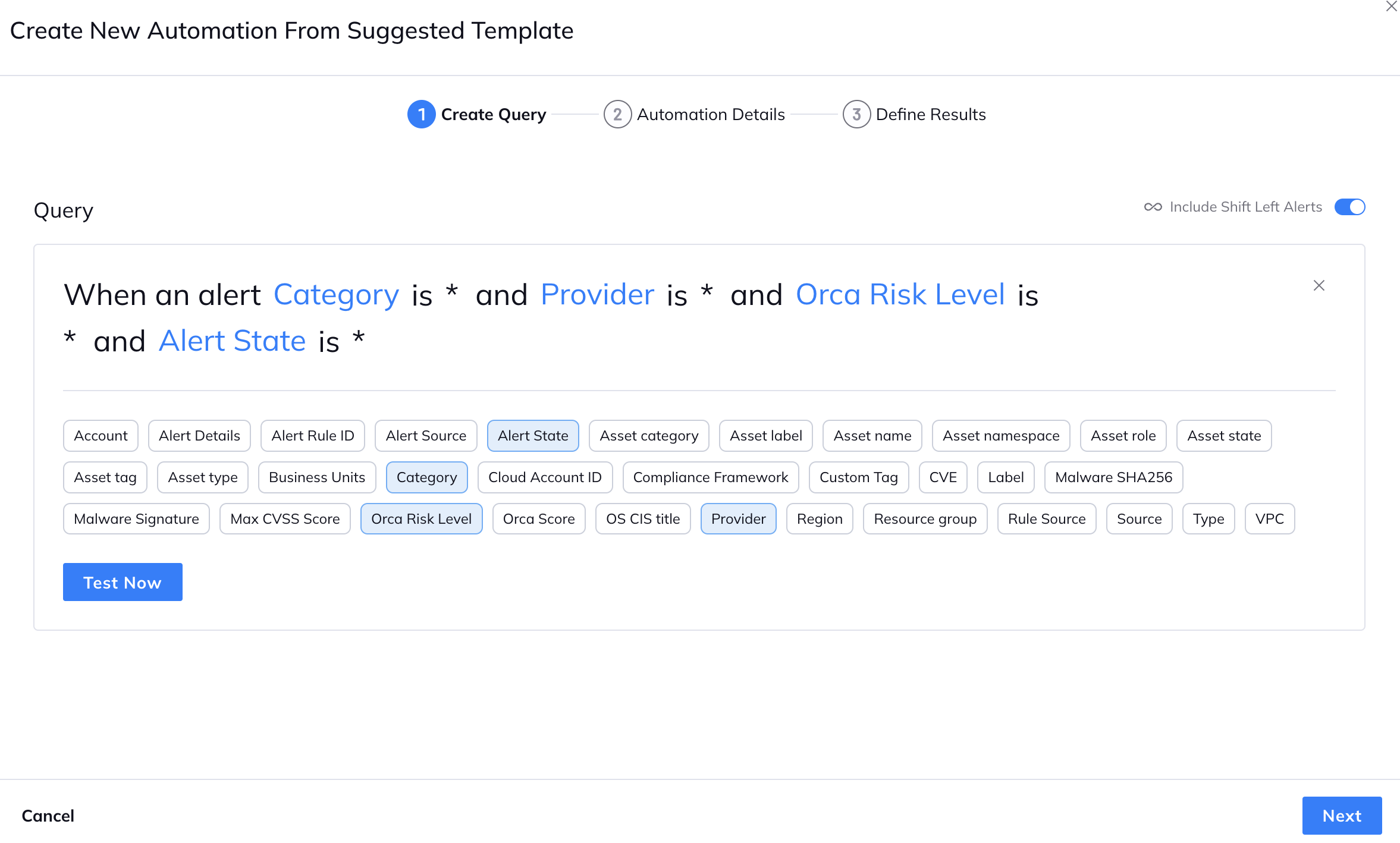
2. 다음에서 **Orca 권장 템플릿** 섹션에서 **통합을 통해 알러트 전달**.
3. 다음 페이지에서 **쿼리 만들기** 페이지에서 기본값을 업데이트합니다 **Query** 값을 원하는 대로 변경합니다.
* 이 쿼리는 Panther로 전달될 알러트를 결정합니다. 별표를 입력하거나, 더 구체적인 값을 사용하거나, 조건을 추가/제거할 수 있습니다.
4. 클릭합니다 **다음**.
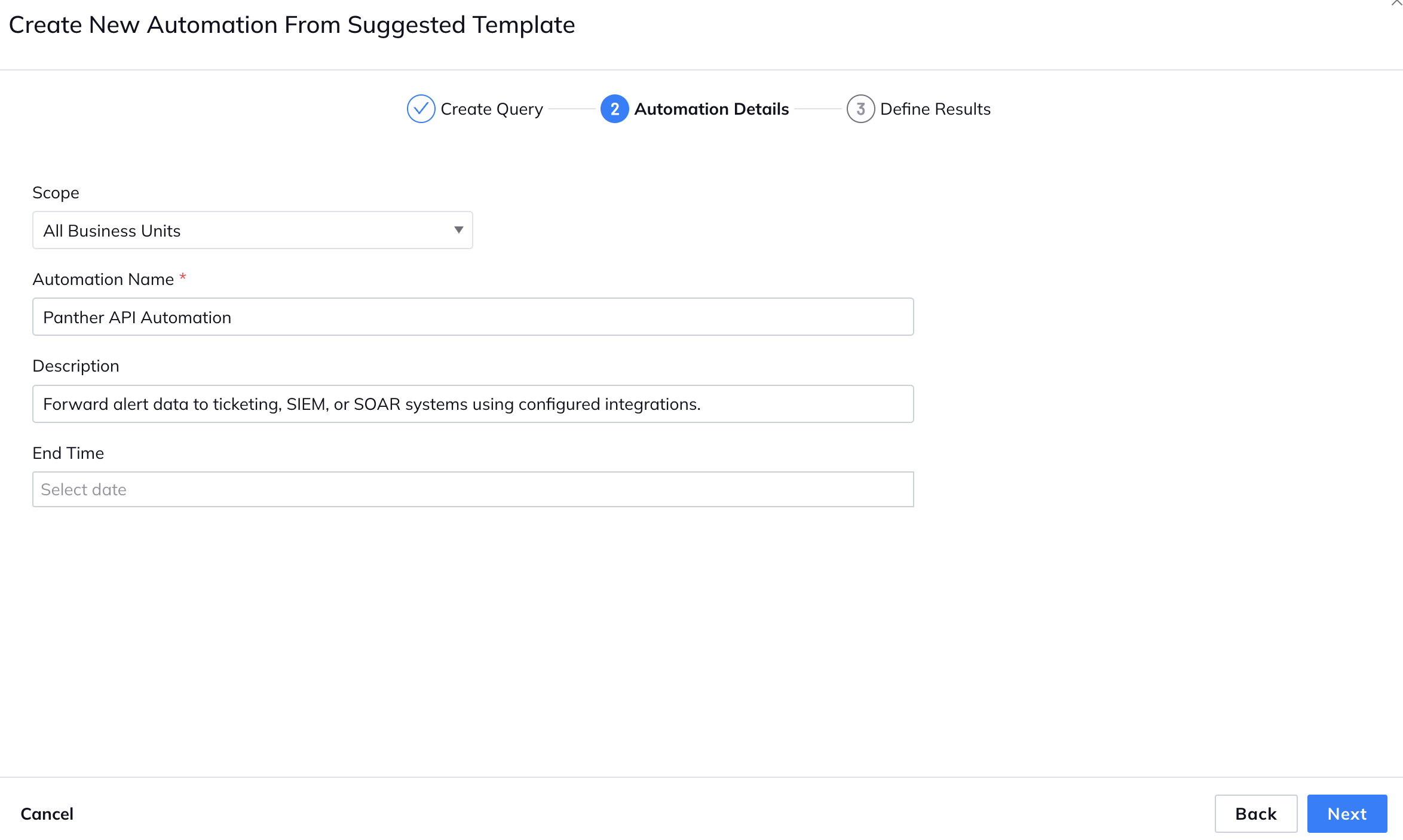
5. 다음 페이지에서 **자동화 세부정보** 페이지에서 **자동화 이름**.
6. 클릭합니다 **다음**.
7. 다음 페이지에서 **결과 정의** 페이지에서 **SIEM/SOAR**:
1. 선택 **Panther**.
2. 다음 **Panther 트리거 선택** 드롭다운 필드에서 2단계에서 만든 Panther 통합을 선택합니다.
8. 클릭합니다 **생성**.
## Panther가 관리하는 디택션
참고 [Panther가 관리하는](https://docs.panther.com/detections/panther-managed) Orca Security용 룰 [panther-analysis GitHub 저장소](https://github.com/panther-labs/panther-analysis/tree/main/rules/orca_rules).
## 지원되는 로그 유형
{% hint style="warning" %}
2026년 1월 1일부터 Orca Security는 다음에 대한 지원을 중단합니다 `Orca.알러트` 스키마를 다음으로 대체합니다 `Orca.알러트 이벤트`.
통합을 업데이트하여 새 `Orca.알러트 이벤트` 스키마를 2026년 1월 이전에 사용하도록 하세요.
새 형식에 대한 자세한 내용은 다음을 참조하세요 [Orca Security 문서](https://docs.orcasecurity.io/docs/2025-10-29-changes-to-alert-fields-for-integrations-in-the-serving-layer).
{% endhint %}
### Orca.알러트 이벤트
```yaml
스키마: Orca.알러트 이벤트
설명: Orca Security에서 전송된 알러트(새 형식)
referenceURL: https://orca.security/
필드:
- 이름: version
필수: true
설명: 알러트 데이터 형식 버전
유형: string
- 이름: data
필수: true
설명: 알러트 데이터 페이로드
유형: object
필드:
- 이름: account_id
설명: 문제가 디택션된 클라우드 계정 식별자
유형: string
지표:
- aws_account_id
- 이름: account_name
설명: 클라우드 계정 이름
유형: string
- 이름: cloud_provider
설명: 클라우드 제공업체 이름(예: aws, azure, gcp)
유형: string
- 이름: cloud_provider_id
설명: 클라우드 제공업체 식별자
유형: string
- 이름: 알러트_id
설명: 알러트의 고유 식별자
유형: string
- 이름: 알러트 레이블
설명: 분류를 위해 알러트와 연결된 레이블 또는 태그
유형: array
요소:
유형: string
- 이름: 알러트 범주
필수: true
설명: 알러트의 보안 범주(예: 취약점, 잘못된 구성)
유형: string
- 이름: created_at
필수: true
설명: 알러트가 생성된 시각
유형: timestamp
시간 형식:
- rfc3339
- '%Y-%m-%dT%H:%M:%S'
이벤트 시간 여부: true
- 이름: remediation_cli
설명: 해결을 위한 명령줄 지침
유형: array
요소:
유형: string
- 이름: remediation_console
설명: 콘솔 기반 해결 지침
유형: array
요소:
유형: string
- 이름: description
필수: true
설명: 알러트에 대한 자세한 설명
유형: string
- 이름: details
필수: true
설명: 알러트에 대한 기술적 세부정보
유형: string
- 이름: orca_score
설명: Orca 보안 위험 점수
유형: float
- 이름: recommendation
필수: true
설명: 문제를 해결하기 위한 권장 조치
유형: string
- 이름: risk_level
설명: 위험 수준 평가(예: 높음, 중간, 낮음, 치명적)
유형: string
- name: source
설명: 알러트 데이터의 출처(예: 소프트웨어 패키지 이름)
유형: string
- 이름: status
설명: 알러트의 현재 상태(예: 열림, 닫힘, 해결됨)
유형: string
- 이름: type
필수: true
설명: 알러트 유형(예: 취약한 소프트웨어, 잘못된 구성)
유형: string
- name: last_seen
설명: 문제가 마지막으로 관찰된 시각
유형: timestamp
시간 형식:
- rfc3339
- '%Y-%m-%dT%H:%M:%S'
- name: last_updated
설명: 알러트가 마지막으로 업데이트된 시각
유형: timestamp
시간 형식:
- rfc3339
- '%Y-%m-%dT%H:%M:%S'
- 이름: max_cvss_score
설명: 알러트의 취약점에 대한 최대 CVSS 점수
유형: float
- 이름: 룰 유형
설명: 알러트를 트리거한 룰 유형
유형: string
- 이름: auto_remediation_actions
설명: 이 알러트에 사용할 수 있는 자동 해결 작업
유형: array
요소:
유형: string
- 이름: asset_hostname
설명: 영향을 받는 자산의 호스트 이름
유형: string
지표:
- 호스트 이름
- 이름: asset_name
필수: true
설명: 영향을 받는 자산 또는 리소스의 이름
유형: string
- 이름: asset_state
설명: 자산의 현재 상태(예: 실행 중, 중지됨)
유형: string
- 이름: asset_tags
설명: 자산과 연결된 키-값 쌍 태그
유형: json
- 이름: asset_type
필수: true
설명: 영향을 받는 자산 유형(예: vm, 컨테이너, 데이터베이스)
유형: string
- 이름: asset_unique_id
필수: true
설명: 영향을 받는 자산의 고유 식별자
유형: string
- 이름: asset_vpcs
설명: 자산이 연결된 VPC 목록
유형: array
요소:
유형: string
- 이름: cluster_name
설명: 자산이 속한 클러스터의 이름
유형: string
- 이름: cluster_type
설명: 클러스터 유형(예: Kubernetes, ECS)
유형: string
- 이름: custom_tags
설명: 알러트와 연결된 사용자 지정 태그
유형: json
- 이름: vm_id
설명: 가상 머신 식별자
유형: string
- 이름: asset_category
설명: 영향을 받는 자산의 범주(예: VM, 컨테이너)
유형: string
- 이름: asset_labels
설명: 자산과 연결된 레이블 또는 태그
유형: array
요소:
유형: string
- 이름: resource_group_name
설명: 리소스 그룹 이름
유형: string
- 이름: asset_regions
설명: 자산이 배포된 클라우드 리전 목록
유형: array
요소:
유형: string
- 이름: cve_list
설명: 알러트와 관련된 CVE 식별자 목록
유형: array
요소:
유형: string
지표:
- cve
- 이름: related_compliances
설명: 알러트와 관련된 규정 준수 표준 목록
유형: array
요소:
유형: string
- 이름: findings
설명: 알러트와 관련된 자세한 조사 결과
유형: json
- 이름: 알러트 UI 링크
설명: Orca Security UI에서 알러트를 볼 수 있는 URL 링크
유형: string
지표:
- url
```
### Orca.알러트 (레거시)
{% hint style="warning" %}
2026년 1월 1일부터 Orca Security는 다음에 대한 지원을 중단합니다 `Orca.알러트` 스키마를 다음으로 대체합니다 `Orca.알러트 이벤트`.
통합을 업데이트하여 새 `Orca.알러트 이벤트` 스키마를 2026년 1월 이전에 사용하도록 하세요.
새 형식에 대한 자세한 내용은 다음을 참조하세요 [Orca Security 문서](https://docs.orcasecurity.io/docs/2025-10-29-changes-to-alert-fields-for-integrations-in-the-serving-layer).
{% endhint %}
```yaml
스키마: Orca.알러트
설명: Orca Security에서 전송된 알러트
referenceURL: https://orca.security/
필드:
- 이름: 알러트 레이블
설명: 분류를 위해 알러트와 연결된 레이블 또는 태그
유형: array
요소:
유형: string
- 이름: 알러트 출처
필수: true
설명: 알러트를 생성한 소스 시스템 또는 구성 요소
유형: string
- 이름: asset_name
필수: true
설명: 영향을 받는 자산 또는 리소스의 이름
유형: string
- 이름: asset_type_string
필수: true
설명: 사람이 읽을 수 있는 형식의 자산 유형(예: VM, 컨테이너, 데이터베이스)
유형: string
- 이름: asset_unique_id
필수: true
설명: 영향을 받는 자산의 고유 식별자
유형: string
- 이름: category
필수: true
설명: 알러트의 보안 범주(예: 취약점, 잘못된 구성)
유형: string
- 이름: cloud_account_id
필수: true
설명: 문제가 디택션된 클라우드 계정 식별자
유형: string
- 이름: cluster_unique_id
필수: true
설명: 자산이 클러스터의 일부인 경우 클러스터의 고유 식별자
유형: string
- 이름: configuration
필수: true
설명: 알러트에 대한 구성 세부정보 및 메타데이터
유형: object
필드:
- 이름: comments_count
설명: 알러트에 추가된 댓글 수
유형: bigint
- 이름: status_justification
설명: 현재 상태에 대해 제공된 근거
유형: string
- 이름: status_reason
설명: 현재 상태의 이유
유형: string
- 이름: prev_user_status
설명: 사용자가 설정한 이전 상태
유형: string
- 이름: jira
설명: 이 알러트의 JIRA 통합 세부정보
유형: json
- 이름: jira_issue
설명: 연결된 JIRA 이슈 식별자
유형: string
- 이름: jira_issue_link
설명: 연결된 JIRA 이슈로 가는 URL 링크
유형: string
- 이름: user_orca_score
설명: 사용자가 정의한 Orca 위험 점수
유형: float
- 이름: user_score
설명: 사용자가 정의한 위험 점수
유형: bigint
- 이름: service_now_incidents
설명: 이 알러트와 관련된 ServiceNow 인시던트 세부정보
유형: json
- 이름: user_status
설명: 사용자가 설정한 상태
유형: string
- 이름: description
필수: true
설명: 알러트에 대한 자세한 설명
유형: string
- 이름: details
필수: true
설명: 알러트에 대한 기술적 세부정보
유형: string
- 이름: extra_match_data
설명: 패턴 기반 알러트를 위한 추가 매칭 데이터
유형: object
필드:
- 이름: evidences
설명: 알러트 디택션을 뒷받침하는 증거
유형: object
필드:
- 이름: event_ids
설명: 증거와 관련된 이벤트 ID 목록
유형: array
요소:
유형: string
- 이름: 패턴 디택션 결과
설명: 패턴 기반 디택션의 결과
유형: object
필드:
- 이름: cloud_account_id
설명: 패턴이 디택션된 클라우드 계정 ID
유형: string
- 이름: 디택션된 이벤트 핑거프린트
설명: 패턴과 일치하는 디택션된 이벤트의 핑거프린트
유형: array
요소:
유형: object
필드:
- 이름: common_field
설명: 패턴 매칭에 사용되는 공통 필드
유형: string
지표:
- aws_arn
- 이름: epoch_timestamp
설명: 이벤트가 발생한 시각의 타임스탬프
유형: timestamp
시간 형식:
- unix
- name: eventID
description: 이벤트의 고유 식별자
유형: string
- name: eventName
설명: 패턴 일치를 트리거한 이벤트 이름
유형: string
- 이름: organization_id
설명: 패턴이 디택션된 조직 ID
유형: string
- 이름: pattern
설명: 알러트를 트리거한 패턴 정의
유형: object
필드:
- 이름: common_field
설명: 패턴 디택션 전반에서 사용되는 공통 필드
유형: string
- 이름: 디택션
설명: 디택션 패턴 목록
유형: array
요소:
유형: string
- 이름: name
설명: 패턴 이름
유형: string
- 이름: window_size
설명: 패턴 디택션의 시간 창 크기
유형: bigint
- 이름: trace_id
설명: 디택션 프로세스를 추적하기 위한 트레이스 식별자
유형: string
- 이름: group_unique_id
필수: true
설명: 자산이 속한 그룹의 고유 식별자
유형: string
- 이름: is_compliance
필수: true
설명: 알러트가 규정 준수와 관련되어 있는지 여부를 나타냅니다
유형: boolean
- 이름: 수준
필수: true
설명: 알러트의 숫자 심각도 수준
유형: bigint
- 이름: live
설명: 알러트가 현재 활성 상태인지 여부를 나타냅니다
유형: boolean
- 이름: organization_id
필수: true
설명: 조직 식별자
유형: string
- 이름: recommendation
필수: true
설명: 문제를 해결하기 위한 권장 조치
유형: string
- 이름: 룰_id
필수: true
설명: 알러트를 트리거한 룰의 식별자
유형: string
- name: source
설명: 알러트 데이터의 출처
유형: string
- 이름: state
필수: true
설명: 알러트의 현재 상태 정보
유형: object
필드:
- 이름: 알러트_id
설명: 알러트의 고유 식별자
유형: string
- 이름: created_at
설명: 알러트가 생성된 시각
유형: timestamp
시간 형식:
- rfc3339
이벤트 시간 여부: true
- name: last_seen
설명: 문제가 마지막으로 관찰된 시각
유형: timestamp
시간 형식:
- rfc3339
- 이름: high_since
설명: 알러트가 고심각도 상태가 된 시각
유형: timestamp
시간 형식:
- rfc3339
- name: last_updated
설명: 알러트가 마지막으로 업데이트된 시각
유형: timestamp
시간 형식:
- rfc3339
- 이름: orca_score
설명: Orca 보안 위험 점수
유형: float
- 이름: risk_level
설명: 위험 수준 평가(예: 높음, 중간, 낮음)
유형: string
- 이름: score
설명: 숫자 위험 점수
유형: float
- 이름: severity
설명: 알러트의 심각도 수준
유형: string
- 이름: status
설명: 알러트의 현재 상태
유형: string
- 이름: status_time
설명: 상태가 마지막으로 변경된 시각
유형: timestamp
시간 형식:
- rfc3339
- 이름: verification_status
설명: 검증 프로세스의 상태
유형: string
- 이름: is_new_score
설명: 점수가 최근에 업데이트되었는지 여부를 나타냅니다
유형: boolean
- 이름: closed_time
설명: 알러트가 닫힌 시각
유형: timestamp
시간 형식:
- rfc3339
- 이름: closed_reason
설명: 알러트를 닫은 이유
유형: string
- 이름: low_since
설명: 알러트가 저심각도 상태가 된 시각
유형: timestamp
시간 형식:
- rfc3339
- 이름: in_verification
설명: 알러트가 현재 검증 중인지 여부를 나타냅니다
유형: boolean
- 이름: 룰 출처
설명: 알러트를 트리거한 룰의 출처
유형: string
- 이름: subject_type
필수: true
설명: 알러트의 영향을 받는 주체 유형
유형: string
- 이름: type
필수: true
설명: 알러트 유형
유형: string
- 이름: type_key
필수: true
설명: 알러트 유형의 키 식별자
유형: string
- 이름: type_string
필수: true
설명: 사람이 읽을 수 있는 알러트 유형
유형: string
- 이름: account_name
설명: 클라우드 계정 이름
유형: string
- 이름: asset_auto_updates
설명: 자산의 자동 업데이트 구성
유형: string
- 이름: asset_availability_zones
설명: 자산이 배포된 가용 영역 목록
유형: array
요소:
유형: string
- 이름: asset_category
설명: 영향을 받는 자산의 범주
유형: string
- 이름: asset_distribution_major_version
설명: OS 배포판의 주 버전
유형: string
- 이름: asset_distribution_name
설명: OS 배포판 이름
유형: string
- 이름: asset_distribution_version
설명: OS 배포판의 전체 버전
유형: string
- 이름: asset_first_private_dnss
설명: 자산의 개인 DNS 이름 목록
유형: array
요소:
유형: string
- 이름: asset_first_private_ips
설명: 자산의 개인 IP 주소 목록
유형: array
요소:
유형: string
지표:
- ip
- 이름: asset_first_public_dnss
설명: 자산의 공용 DNS 이름 목록
유형: array
요소:
유형: string
- 이름: asset_first_public_ips
설명: 자산의 공용 IP 주소 목록
유형: array
요소:
유형: string
지표:
- ip
- 이름: asset_hostname
설명: 영향을 받는 자산의 호스트 이름
유형: string
지표:
- 호스트 이름
- 이름: asset_image_id
설명: 자산에서 사용되는 이미지 ID
유형: string
- 이름: asset_ingress_ports
설명: 자산에서 열려 있는 인그레스 포트 목록
유형: array
요소:
유형: string
- 이름: asset_labels
설명: 자산과 연결된 레이블 또는 태그
유형: array
요소:
유형: string
- 이름: asset_num_private_dnss
설명: 자산의 개인 DNS 이름 수
유형: bigint
- 이름: asset_num_private_ips
설명: 자산의 개인 IP 주소 수
유형: bigint
- 이름: asset_num_public_dnss
설명: 자산의 공용 DNS 이름 수
유형: bigint
- 이름: asset_num_public_ips
설명: 자산의 공용 IP 주소 수
유형: bigint
- 이름: asset_regions
설명: 자산이 배포된 클라우드 리전 목록
유형: array
요소:
유형: string
- 이름: asset_regions_names
설명: 자산이 배포된 리전의 사람이 읽을 수 있는 이름
유형: array
요소:
유형: string
- 이름: asset_role_names
설명: 자산과 연결된 IAM 역할 이름 목록
유형: array
요소:
유형: string
- 이름: asset_state
설명: 자산의 현재 상태(예: 실행 중, 중지됨)
유형: string
- 이름: asset_stopped
설명: 자산이 현재 중지 상태인지 여부를 나타냅니다
유형: boolean
- 이름: asset_tags_info_list
설명: 자산과 연결된 태그 목록
유형: array
요소:
유형: string
- 이름: asset_type
설명: 영향을 받는 자산 유형
유형: string
- 이름: asset_vendor_id
설명: 자산의 공급업체별 식별자
유형: string
- 이름: asset_vpcs
설명: 자산이 연결된 VPC 목록
유형: array
요소:
유형: string
- 이름: cloud_account_type
설명: 클라우드 계정 유형(예: AWS, Azure, GCP)
유형: string
- 이름: cloud_provider
설명: 클라우드 제공업체 이름
유형: string
- 이름: cloud_provider_id
설명: 클라우드 제공업체 식별자
유형: string
지표:
- aws_account_id
- 이름: cloud_vendor_id
설명: 공급업체별 클라우드 식별자
유형: string
지표:
- aws_account_id
- 이름: cluster_name
설명: 자산이 속한 클러스터의 이름
유형: string
- 이름: cluster_type
설명: 클러스터 유형(예: Kubernetes, ECS)
유형: string
- 이름: container_id
설명: 컨테이너 식별자
유형: string
- 이름: container_image_digest
설명: 컨테이너 이미지의 다이제스트 해시
유형: string
- 이름: container_image_name
설명: 컨테이너 이미지 이름
유형: string
- 이름: container_image_version
설명: 컨테이너 이미지 버전
유형: string
- 이름: container_k8s_pod_namespace
설명: 파드의 Kubernetes 네임스페이스
유형: string
- 이름: container_service_name
설명: 컨테이너 서비스 이름
유형: string
- 이름: context
설명: 알러트에 대한 문맥 정보
유형: string
- 이름: cve_list
설명: 알러트와 관련된 CVE 식별자 목록
유형: array
요소:
유형: string
- 이름: cve_resolved
설명: 해결된 CVE 목록
유형: array
요소:
유형: json
- 이름: data
설명: 알러트와 관련된 추가 데이터
유형: json
- 이름: 가장 이른 CVE 디택션
설명: 가장 이른 CVE 디택션 시각
유형: string
- 이름: findings
설명: 알러트와 관련된 자세한 조사 결과
유형: array
요소:
유형: json
- 이름: group_name
설명: 자산이 속한 그룹 이름
유형: string
- 이름: group_type
설명: 그룹 유형
유형: string
- 이름: group_type_string
설명: 사람이 읽을 수 있는 그룹 유형
유형: string
- 이름: group_val
설명: 그룹과 연결된 값
유형: string
- 이름: is_룰
설명: 알러트가 룰에 의해 트리거되었는지 나타냄
유형: boolean
- 이름: k8s_cluster_name
설명: 쿠버네티스 클러스터 이름
유형: string
- 이름: max_cvss_score
설명: 알러트의 취약점에 대한 최대 CVSS 점수
유형: float
- 이름: organization_name
설명: 조직 이름
유형: string
- 이름: related_compliances
설명: 알러트와 관련된 규정 준수 표준 목록
유형: array
요소:
유형: string
- 이름: 룰_query
설명: 알러트를 트리거한 룰에서 사용한 쿼리
유형: string
- 이름: severity_contributing_factors
설명: 심각도 평가에 기여한 요인
유형: array
요소:
유형: string
- 이름: severity_reducing_factors
설명: 심각도 평가를 낮춘 요인
유형: array
요소:
유형: string
- 이름: tags_info_list
설명: 알러트와 관련된 태그 목록
유형: array
요소:
유형: string
- 이름: vm_asset_unique_id
설명: VM 자산의 고유 식별자
유형: string
- 이름: vm_id
설명: 가상 머신 식별자
유형: string
- 이름: vm_name
설명: 가상 머신 이름
유형: string
- 이름: container_image_tags
설명: 컨테이너 이미지와 관련된 태그
유형: string
- 이름: image_manifest_annotations
설명: 이미지 매니페스트의 주석
유형: string
- 이름: image_repository_uri
설명: 컨테이너 이미지 저장소의 URI
유형: string
- 이름: repository_name
설명: 저장소 이름
유형: string
- 이름: remediation_cli
설명: 해결을 위한 명령줄 지침
유형: array
요소:
유형: string
- 이름: resource_group_name
설명: 리소스 그룹 이름
유형: string
```
---
# Agent Instructions
This documentation is published with GitBook. GitBook is the documentation platform designed so that both humans and AI agents can read, navigate, and reason over technical content effectively. Learn more at gitbook.com.
## Querying This Documentation
If you need additional information that is not directly available in this page, you can query the documentation dynamically by asking a question.
Perform an HTTP GET request on the current page URL with the `ask` query parameter, and the optional `goal` query parameter:
```
GET https://docs.panther.com/ko/data-onboarding/supported-logs/orca-security.md?ask=&goal=
```
`ask` is the immediate question: it should be specific, self-contained, and written in natural language.
`goal` is optional and describes the broader end goal you are ultimately trying to accomplish on behalf of the user. GitBook uses it to tailor the answer towards what is most useful for that goal.
The response will contain a direct answer to the question and relevant excerpts and sources from the documentation.
Use this mechanism when the answer is not explicitly present in the current page, you need clarification or additional context, or you want to retrieve related documentation sections.
.png?alt=media)