> For the complete documentation index, see [llms.txt](https://docs.panther.com/llms.txt). Markdown versions of documentation pages are available by appending `.md` to page URLs; this page is available as [Markdown](https://docs.panther.com/ko/alerts/destinations/servicenow.md).
# ServiceNow 대상(사용자 지정 Webhook)
Panther의 사용자 지정 Webhook 옵션을 사용해 ServiceNow 알러트를 설정합니다
## 개요
ServiceNow 콘솔에서 간단한 Scripted Rest API 구성을 사용하면 Panther에서 발생한 알러트를 새 인시던트에 직접 매핑할 수 있습니다. 알러트의 내용을 사용자 지정할 수 있습니다 [Python 탐지에서의 알러트 함수](/ko/detections/rules/python.md#alert-functions-in-python-detections) 및 [YAML 탐지에서의 동적 알러트 키](/ko/detections/rules/writing-simple-detections.md#dynamic-alert-keys-in-yaml-detections).
## Panther 알러트로부터 티켓을 생성하도록 ServiceNow를 구성하는 방법
Panther 알러트로부터 티켓을 생성하도록 ServiceNow를 구성하려면, ServiceNow에서 Scripted REST API를 만든 다음 ServiceNow 전달 URL을 사용하여 Panther에서 사용자 지정 웹훅 알러트 대상을 만듭니다.
{% hint style="info" %}
이 프로세스에 대한 추가 정보는 ServiceNow 문서에서 찾을 수 있습니다: [ServiceNow에 웹훅을 통합하는 방법](https://www.servicenow.com/community/in-other-news/how-to-integrate-webhooks-into-servicenow/ba-p/2271745).
{% endhint %}
### 사전 요구 사항
* 완료하려면 [이 프로세스의 1단계](#step-1-create-a-scripted-rest-api-in-servicenow), ServiceNow에서 Scripted REST API를 만들려면 ServiceNow 사용자에게 다음 권한이 있어야 합니다: `web_service_admin` 역할을 가져야 합니다.
### 1단계: ServiceNow에서 Scripted REST API 만들기
{% hint style="info" %}
ServiceNow 문서에서 Scripted REST API에 대해 자세히 알아보세요: [Scripted REST APIs](https://docs.servicenow.com/bundle/washingtondc-api-reference/page/integrate/custom-web-services/concept/c_CustomWebServices.html).
{% endhint %}
1. ServiceNow 콘솔에서 다음을 클릭합니다 **모든** 왼쪽 상단 모서리에 있는 탭입니다.
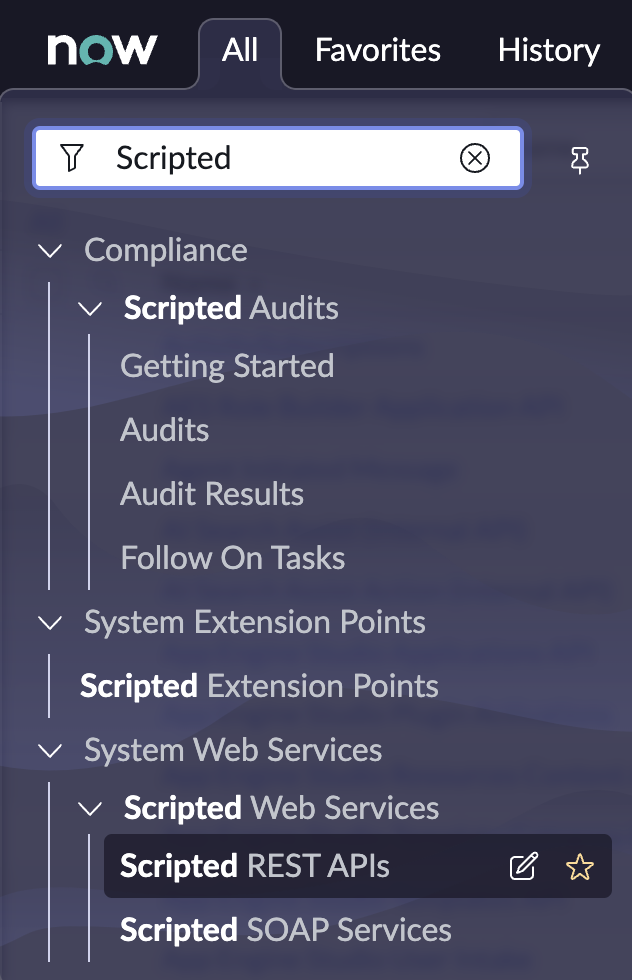
2. 다음을 확장합니다 **System Web Services** 및 **Scripted Web Services** 탐색 메뉴를 확장한 다음 다음을 클릭합니다 **Scripted REST APIs.**\
3. 클릭합니다 **새로 만들기** 오른쪽 상단 모서리에 있습니다.
4. 이름과 ID를 선택합니다. 예를 들면 `Panther 인시던트 생성` 및 `panther_incident_creation`를 각각 사용합니다.\

5. 클릭합니다 **제출**.
6. Scripted Rest API 페이지에서 방금 만든 이름을 검색합니다. 다음을 클릭하세요 **하이퍼링크된 이름을**
7. 페이지 하단 근처에서 다음을 클릭합니다 **Resources 탭.** 다음 타일을 클릭하세요: **새로 만들기** 오른쪽 모서리에 있는 버튼입니다.
8. 다음을 입력합니다 **Scripted REST 리소스 알러트** 페이지:
* **이름:** 설명적인 이름을 입력합니다. 예: `Panther_알러트`.\

* **HTTP 메서드:** POST를 선택합니다.
* **스크립트:** 아래 스키마 코드를 붙여넣습니다:
* ```
(function process(/*RESTAPIRequest*/ request, /*RESTAPIResponse*/ response) {
// 각 필드를 준비합니다
var data = request.body.data;
var title = data.title;
var 알러트 = JSON.stringify(data);
var 알러트Context = JSON.stringify(data.알러트Context);
var severity = data.severity;
var link = data.link;
var runbook = data.runbook;
var type = data.type;
var 알러트Id = data.알러트Id;
var grIncident = new GlideRecord('incident');
grIncident.initialize();
grIncident.setValue('short_description', title);
grIncident.setValue('description', 알러트 );
grIncident.setValue('category', type);
grIncident.setValue('subcategory', 알러트Id);
// 긴급도를 Panther 심각도에 매핑합니다
if (severity == "CRITICAL" || severity == "HIGH") {
grIncident.setValue('urgency','1');
grIncident.setValue('impact','1');
} else if (severity == "LOW" || severity == "MEDIUM") {
grIncident.setValue('urgency','2');
} else {
grIncident.setValue('urgency','3');
}
//grIncident.insert();
var recResponse = grIncident.insert(handleResponse);
function handleResponse(recResponse, answer) {
// answer는 생성된 레코드의 sys_id 또는 null입니다
알러트('새로 생성된 sys_id는 - ' + answer + ' 입니다');
}
var url = gs.getProperty('glide.servlet.uri');
// API 응답을 구성하는 예시로, 이 예제는 위에서 생성된 인시던트 ID를 반환합니다.
var body = {};
body.sys_id = recResponse;
body.link = url + "task.do?sys_id=" + recResponse;
response.setBody(body);
// 대상 통합을 만들고 테스트할 때 Panther의 예제 테스트 이벤트
{"id":"Test.알러트","createdAt":"2022-04-26T03:17:32.099054303Z","severity":"INFO","type":"룰","link":"https://domain.runpanther.net","title":"이것은 테스트 알러트입니다","name":"테스트 알러트","알러트Id":"Test.알러트","알러트Context":{},"description":"이것은 테스트 알러트입니다","runbook":"막혔나요? 문서를 확인해 보세요: https://docs.runpanther.io","tags":["테스트"],"version":"abcdefg"}
})(request, response);
```
* 다음 아래에서 **보안** 탭에서 다음 옆의 확인란 선택을 해제합니다 **인증 필요**.\

9. 클릭합니다 **제출**.
{% hint style="warning" %}
위에 제공된 스키마는 Panther의 알러트 페이로드를 ServiceNow 티켓의 관련 필드에 매핑합니다. 또한 [ServiceNow 블로그](https://community.servicenow.com/community?id=community_blog\&sys_id=886d2a29dbd0dbc01dcaf3231f9619b0) 는 POST 페이로드를 수신하는 다른 예시도 제공합니다. 각 고객 환경은 다르므로, 알러트 페이로드를 ServiceNow 티켓으로 처리하고 파싱하는 방식에 가장 적합한 것을 선택하세요.
{% endhint %}
### 2단계: Panther에서 사용자 지정 웹훅 통합 만들기
1. Panther Console의 왼쪽 탐색 모음에서 **알러트 대상.**
2. 클릭합니다 **+첫 번째 대상을 추가하세요**.
* 이미 대상을 만든 경우, **새로 만들기** 페이지의 오른쪽 상단에서 클릭하여 새 대상을 추가하세요.
3. 다음 타일을 클릭하세요: **Custom Webhook** 타일.
4. 다음 페이지에서 **웹훅 대상을 구성하세요** 페이지에서 양식을 작성하세요:
* **표시 이름:** 설명적인 이름을 입력하세요.
* **Custom Webhook URL**: Custom Webhook 전달 URL을 입력하세요.
* 웹훅 URL은 다음 형식입니다: `https://.service-now.com/`
* 이 값은 ServiceNow 콘솔에서 다음 값들을 조합하여 만들 수 있습니다:
* 브라우저 주소 표시줄의 도메인
* Base API 경로의 **값** 스위치를
* **심각도 수준**: 이 대상으로 보낼 알러트의 심각도 수준을 선택하세요.
* **기본 알러트 유형**: 이 대상으로 보낼 알러트 유형을 선택하세요.
* **로그 유형**: 기본적으로 모든 로그 유형의 알러트를 보냅니다. 특정 로그 유형의 알러트만 보내려면 여기에 로그 유형을 지정하세요.
* **수동 배차 허용**: 이 토글을 켜면 [알러트를 수동으로 전송](https://docs.panther.com/alerts#manual-alert-dispatch) 할 수 있습니다.\

5. 클릭합니다 **대상 추가**.
6. 클릭합니다 **테스트 알러트 보내기** 모든 것이 올바르게 작동하는지 확인하세요.
* 이제 ServiceNow Incidents 테이블에 테스트 이벤트가 있어야 합니다.\

7. 클릭합니다 **설정 완료.**
### 예시
다음 타일을 클릭하세요: **테스트 알러트** 알러트를 생성하여 ServiceNow로 전송하는 버튼입니다. 아래에 알러트의 페이로드가 표시됩니다:
```json
{"id":"Test.알러트","createdAt":"2022-04-26T03:17:32.099054303Z","severity":"INFO","type":"룰","link":"https://domain.runpanther.net","title":"이것은 테스트 알러트입니다","name":"테스트 알러트","알러트Id":"Test.알러트","알러트Context":{},"description":"이것은 테스트 알러트입니다","runbook":"막혔나요? 문서를 확인해 보세요: https://docs.runpanther.io","tags":["테스트"],"version":"1"}
```
ServiceNow가 알러트를 수신하면 ServiceNow Incident 테이블에 인시던트가 생성됩니다:
---
# Agent Instructions
This documentation is published with GitBook. GitBook is the documentation platform designed so that both humans and AI agents can read, navigate, and reason over technical content effectively. Learn more at gitbook.com.
## Querying This Documentation
If you need additional information that is not directly available in this page, you can query the documentation dynamically by asking a question.
Perform an HTTP GET request on the current page URL with the `ask` query parameter, and the optional `goal` query parameter:
```
GET https://docs.panther.com/ko/alerts/destinations/servicenow.md?ask=&goal=
```
`ask` is the immediate question: it should be specific, self-contained, and written in natural language.
`goal` is optional and describes the broader end goal you are ultimately trying to accomplish on behalf of the user. GitBook uses it to tailor the answer towards what is most useful for that goal.
The response will contain a direct answer to the question and relevant excerpts and sources from the documentation.
Use this mechanism when the answer is not explicitly present in the current page, you need clarification or additional context, or you want to retrieve related documentation sections.
.png?alt=media)

 3. 클릭합니다 **새로 만들기** 오른쪽 상단 모서리에 있습니다.
4. 이름과 ID를 선택합니다. 예를 들면 `Panther 인시던트 생성` 및 `panther_incident_creation`를 각각 사용합니다.\

5. 클릭합니다 **제출**.
6. Scripted Rest API 페이지에서 방금 만든 이름을 검색합니다. 다음을 클릭하세요 **하이퍼링크된 이름을**
7. 페이지 하단 근처에서 다음을 클릭합니다 **Resources 탭.** 다음 타일을 클릭하세요: **새로 만들기** 오른쪽 모서리에 있는 버튼입니다.
8. 다음을 입력합니다 **Scripted REST 리소스 알러트** 페이지:
* **이름:** 설명적인 이름을 입력합니다. 예: `Panther_알러트`.\

* **HTTP 메서드:** POST를 선택합니다.
* **스크립트:** 아래 스키마 코드를 붙여넣습니다:
* ```
(function process(/*RESTAPIRequest*/ request, /*RESTAPIResponse*/ response) {
// 각 필드를 준비합니다
var data = request.body.data;
var title = data.title;
var 알러트 = JSON.stringify(data);
var 알러트Context = JSON.stringify(data.알러트Context);
var severity = data.severity;
var link = data.link;
var runbook = data.runbook;
var type = data.type;
var 알러트Id = data.알러트Id;
var grIncident = new GlideRecord('incident');
grIncident.initialize();
grIncident.setValue('short_description', title);
grIncident.setValue('description', 알러트 );
grIncident.setValue('category', type);
grIncident.setValue('subcategory', 알러트Id);
// 긴급도를 Panther 심각도에 매핑합니다
if (severity == "CRITICAL" || severity == "HIGH") {
grIncident.setValue('urgency','1');
grIncident.setValue('impact','1');
} else if (severity == "LOW" || severity == "MEDIUM") {
grIncident.setValue('urgency','2');
} else {
grIncident.setValue('urgency','3');
}
//grIncident.insert();
var recResponse = grIncident.insert(handleResponse);
function handleResponse(recResponse, answer) {
// answer는 생성된 레코드의 sys_id 또는 null입니다
알러트('새로 생성된 sys_id는 - ' + answer + ' 입니다');
}
var url = gs.getProperty('glide.servlet.uri');
// API 응답을 구성하는 예시로, 이 예제는 위에서 생성된 인시던트 ID를 반환합니다.
var body = {};
body.sys_id = recResponse;
body.link = url + "task.do?sys_id=" + recResponse;
response.setBody(body);
// 대상 통합을 만들고 테스트할 때 Panther의 예제 테스트 이벤트
{"id":"Test.알러트","createdAt":"2022-04-26T03:17:32.099054303Z","severity":"INFO","type":"룰","link":"https://domain.runpanther.net","title":"이것은 테스트 알러트입니다","name":"테스트 알러트","알러트Id":"Test.알러트","알러트Context":{},"description":"이것은 테스트 알러트입니다","runbook":"막혔나요? 문서를 확인해 보세요: https://docs.runpanther.io","tags":["테스트"],"version":"abcdefg"}
})(request, response);
```
* 다음 아래에서 **보안** 탭에서 다음 옆의 확인란 선택을 해제합니다 **인증 필요**.\

9. 클릭합니다 **제출**.
{% hint style="warning" %}
위에 제공된 스키마는 Panther의 알러트 페이로드를 ServiceNow 티켓의 관련 필드에 매핑합니다. 또한 [ServiceNow 블로그](https://community.servicenow.com/community?id=community_blog\&sys_id=886d2a29dbd0dbc01dcaf3231f9619b0) 는 POST 페이로드를 수신하는 다른 예시도 제공합니다. 각 고객 환경은 다르므로, 알러트 페이로드를 ServiceNow 티켓으로 처리하고 파싱하는 방식에 가장 적합한 것을 선택하세요.
{% endhint %}
### 2단계: Panther에서 사용자 지정 웹훅 통합 만들기
1. Panther Console의 왼쪽 탐색 모음에서 **알러트 대상.**
2. 클릭합니다 **+첫 번째 대상을 추가하세요**.
* 이미 대상을 만든 경우, **새로 만들기** 페이지의 오른쪽 상단에서 클릭하여 새 대상을 추가하세요.
3. 다음 타일을 클릭하세요: **Custom Webhook** 타일.
4. 다음 페이지에서 **웹훅 대상을 구성하세요** 페이지에서 양식을 작성하세요:
* **표시 이름:** 설명적인 이름을 입력하세요.
* **Custom Webhook URL**: Custom Webhook 전달 URL을 입력하세요.
* 웹훅 URL은 다음 형식입니다: `https://
3. 클릭합니다 **새로 만들기** 오른쪽 상단 모서리에 있습니다.
4. 이름과 ID를 선택합니다. 예를 들면 `Panther 인시던트 생성` 및 `panther_incident_creation`를 각각 사용합니다.\

5. 클릭합니다 **제출**.
6. Scripted Rest API 페이지에서 방금 만든 이름을 검색합니다. 다음을 클릭하세요 **하이퍼링크된 이름을**
7. 페이지 하단 근처에서 다음을 클릭합니다 **Resources 탭.** 다음 타일을 클릭하세요: **새로 만들기** 오른쪽 모서리에 있는 버튼입니다.
8. 다음을 입력합니다 **Scripted REST 리소스 알러트** 페이지:
* **이름:** 설명적인 이름을 입력합니다. 예: `Panther_알러트`.\

* **HTTP 메서드:** POST를 선택합니다.
* **스크립트:** 아래 스키마 코드를 붙여넣습니다:
* ```
(function process(/*RESTAPIRequest*/ request, /*RESTAPIResponse*/ response) {
// 각 필드를 준비합니다
var data = request.body.data;
var title = data.title;
var 알러트 = JSON.stringify(data);
var 알러트Context = JSON.stringify(data.알러트Context);
var severity = data.severity;
var link = data.link;
var runbook = data.runbook;
var type = data.type;
var 알러트Id = data.알러트Id;
var grIncident = new GlideRecord('incident');
grIncident.initialize();
grIncident.setValue('short_description', title);
grIncident.setValue('description', 알러트 );
grIncident.setValue('category', type);
grIncident.setValue('subcategory', 알러트Id);
// 긴급도를 Panther 심각도에 매핑합니다
if (severity == "CRITICAL" || severity == "HIGH") {
grIncident.setValue('urgency','1');
grIncident.setValue('impact','1');
} else if (severity == "LOW" || severity == "MEDIUM") {
grIncident.setValue('urgency','2');
} else {
grIncident.setValue('urgency','3');
}
//grIncident.insert();
var recResponse = grIncident.insert(handleResponse);
function handleResponse(recResponse, answer) {
// answer는 생성된 레코드의 sys_id 또는 null입니다
알러트('새로 생성된 sys_id는 - ' + answer + ' 입니다');
}
var url = gs.getProperty('glide.servlet.uri');
// API 응답을 구성하는 예시로, 이 예제는 위에서 생성된 인시던트 ID를 반환합니다.
var body = {};
body.sys_id = recResponse;
body.link = url + "task.do?sys_id=" + recResponse;
response.setBody(body);
// 대상 통합을 만들고 테스트할 때 Panther의 예제 테스트 이벤트
{"id":"Test.알러트","createdAt":"2022-04-26T03:17:32.099054303Z","severity":"INFO","type":"룰","link":"https://domain.runpanther.net","title":"이것은 테스트 알러트입니다","name":"테스트 알러트","알러트Id":"Test.알러트","알러트Context":{},"description":"이것은 테스트 알러트입니다","runbook":"막혔나요? 문서를 확인해 보세요: https://docs.runpanther.io","tags":["테스트"],"version":"abcdefg"}
})(request, response);
```
* 다음 아래에서 **보안** 탭에서 다음 옆의 확인란 선택을 해제합니다 **인증 필요**.\

9. 클릭합니다 **제출**.
{% hint style="warning" %}
위에 제공된 스키마는 Panther의 알러트 페이로드를 ServiceNow 티켓의 관련 필드에 매핑합니다. 또한 [ServiceNow 블로그](https://community.servicenow.com/community?id=community_blog\&sys_id=886d2a29dbd0dbc01dcaf3231f9619b0) 는 POST 페이로드를 수신하는 다른 예시도 제공합니다. 각 고객 환경은 다르므로, 알러트 페이로드를 ServiceNow 티켓으로 처리하고 파싱하는 방식에 가장 적합한 것을 선택하세요.
{% endhint %}
### 2단계: Panther에서 사용자 지정 웹훅 통합 만들기
1. Panther Console의 왼쪽 탐색 모음에서 **알러트 대상.**
2. 클릭합니다 **+첫 번째 대상을 추가하세요**.
* 이미 대상을 만든 경우, **새로 만들기** 페이지의 오른쪽 상단에서 클릭하여 새 대상을 추가하세요.
3. 다음 타일을 클릭하세요: **Custom Webhook** 타일.
4. 다음 페이지에서 **웹훅 대상을 구성하세요** 페이지에서 양식을 작성하세요:
* **표시 이름:** 설명적인 이름을 입력하세요.
* **Custom Webhook URL**: Custom Webhook 전달 URL을 입력하세요.
* 웹훅 URL은 다음 형식입니다: `https://