> For the complete documentation index, see [llms.txt](https://docs.panther.com/llms.txt). Markdown versions of documentation pages are available by appending `.md` to page URLs; this page is available as [Markdown](https://docs.panther.com/search/threat-hunting.md).
# Threat Hunting in Panther
You've received a Panther alert—now what?
## Overview
While there is no one-size-fits-all formula for threat hunting in your SIEM, the techniques described on this page may be helpful in deciding how to start an investigation. After receiving an alert, you may want to start by [viewing the Panther AI triage](#view-the-panther-ai-alert-triage), run suggested follow-up prompts, and/or pivot around your data. In certain cases, you may need to [search for a value across all your logs in Panther](#how-to-best-search-for-a-value-across-all-your-logs-in-panther).
## How to start searching after receiving an alert
You've received a Panther [alert](/alerts.md) identifying potentially malicious behavior—now you need to learn more about the activity to understand whether the alert is a true positive.
From the alert details page in the Panther Console, you can take the actions below.
### View the Panther AI alert triage
From the [Panther AI alert triage](/alerts.md#panther-ai-alert-triage) summary, you can examine the queries Panther AI ran and/or prompt it to investigate further:
* View queries Panther AI ran during triage.
* Panther AI may run queries to collect data it deems useful during its initial investigation. These are formatted as [citations](/ai.md#citations).
* The query results will be incorporated into the overall AI triage summary, but if you'd like to see them yourself (and use the query as a starting point for [pivots](/resources/help/glossary.md#pivot)), you can click a query citation to be taken to [Search](/search/search-tool.md), where the query will execute.
* Prompt Panther AI to generate a search.
* Use [natural language](/resources/help/glossary.md#natural-language) to prompt Panther AI to run a search, and/or select, from the initial AI triage, one of the **Recommended Follow Up AI Prompts**—see the [Running an AI-suggested follow-up prompt to alert triage](/ai/examples.md#running-an-ai-suggested-follow-up-prompt-to-alert-triage) example.
### Run the provided PantherFlow Investigation query
In certain [Panther-managed detections](/detections/panther-managed.md), the alerts are generated with a **PantherFlow Investigation** alert context field. (This is generated using the [`pantherflow_investigation()` helper](https://github.com/panther-labs/panther-analysis/blob/develop/global_helpers/panther_base_helpers.py#L349).) You can copy this query and run it in [Search](/search/search-tool.md).
### Pivot on an indicator value
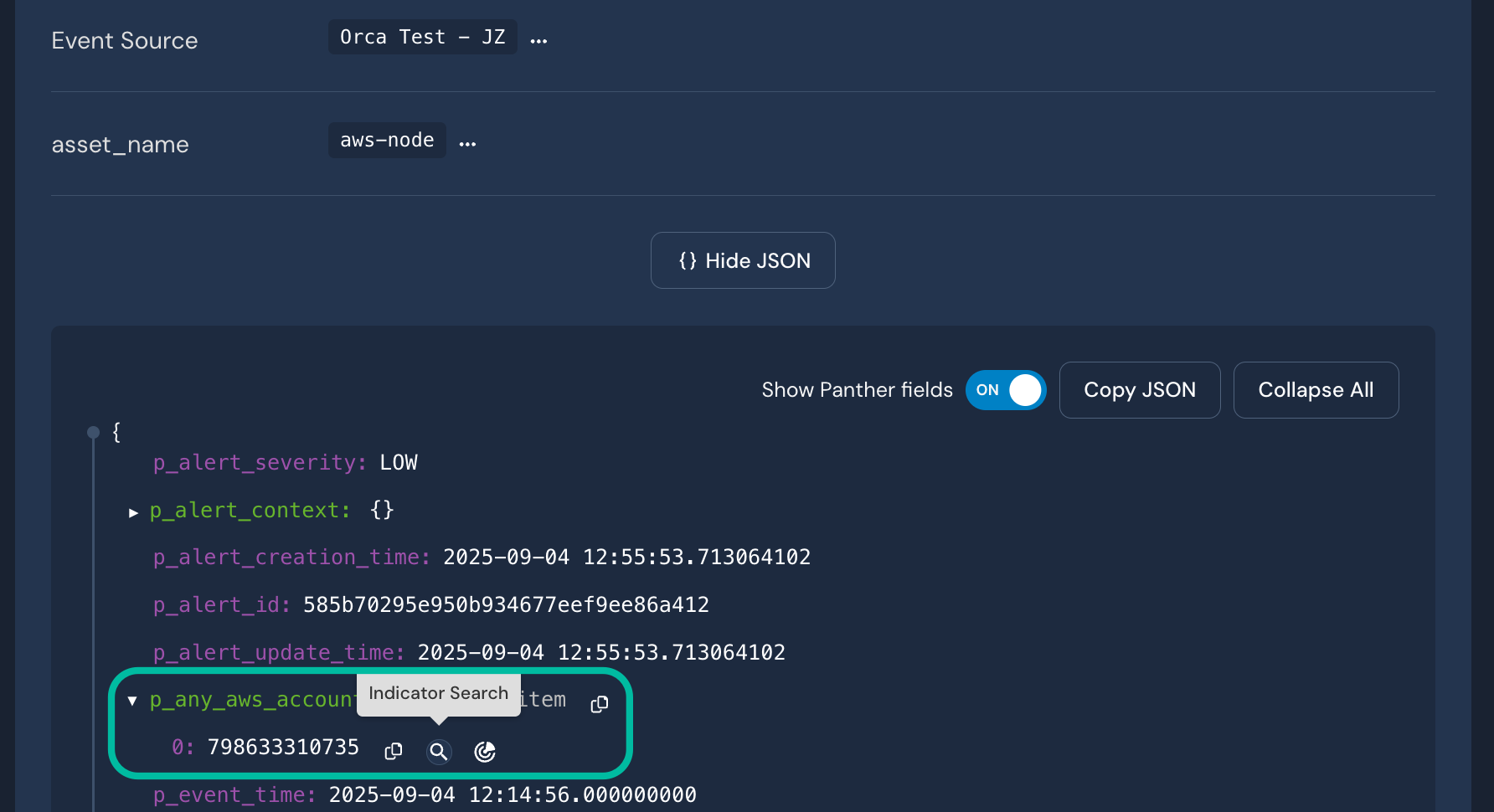
To pivot on an indicator value, from an event associated with the alert, locate a `p_any` field (also known as an [indicator field](/search/panther-fields.md#indicator-fields)). Hover over a value and click the magnifying glass icon (with the tooltip **Indicator Search**):
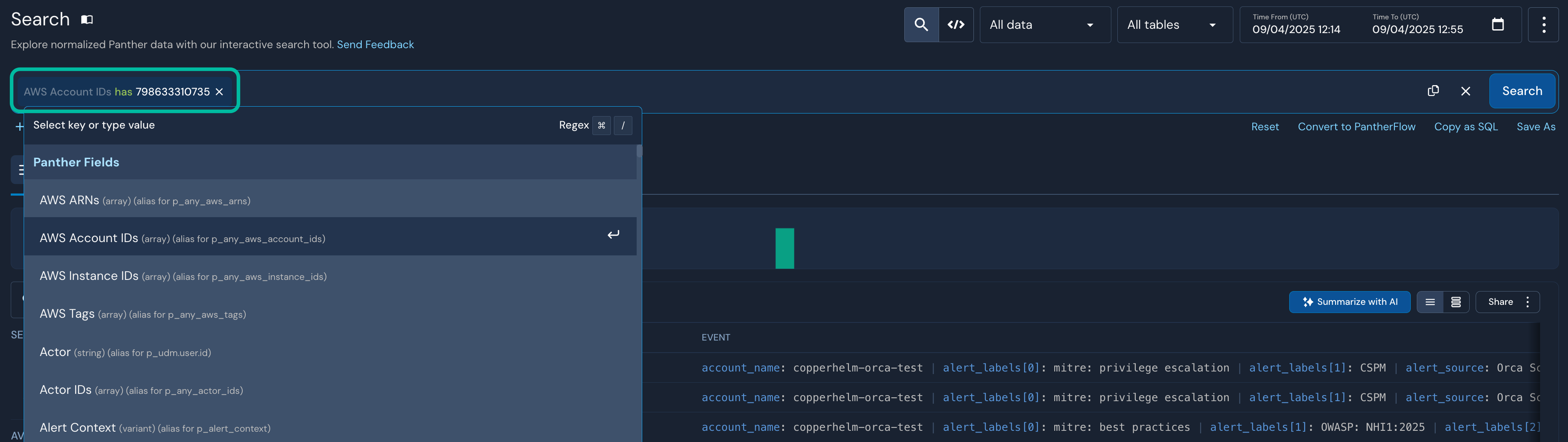
You'll be taken to [Search](/search/search-tool.md) where a search for that value (in the relevant indicator field) across all logs will execute:
### Search alert events
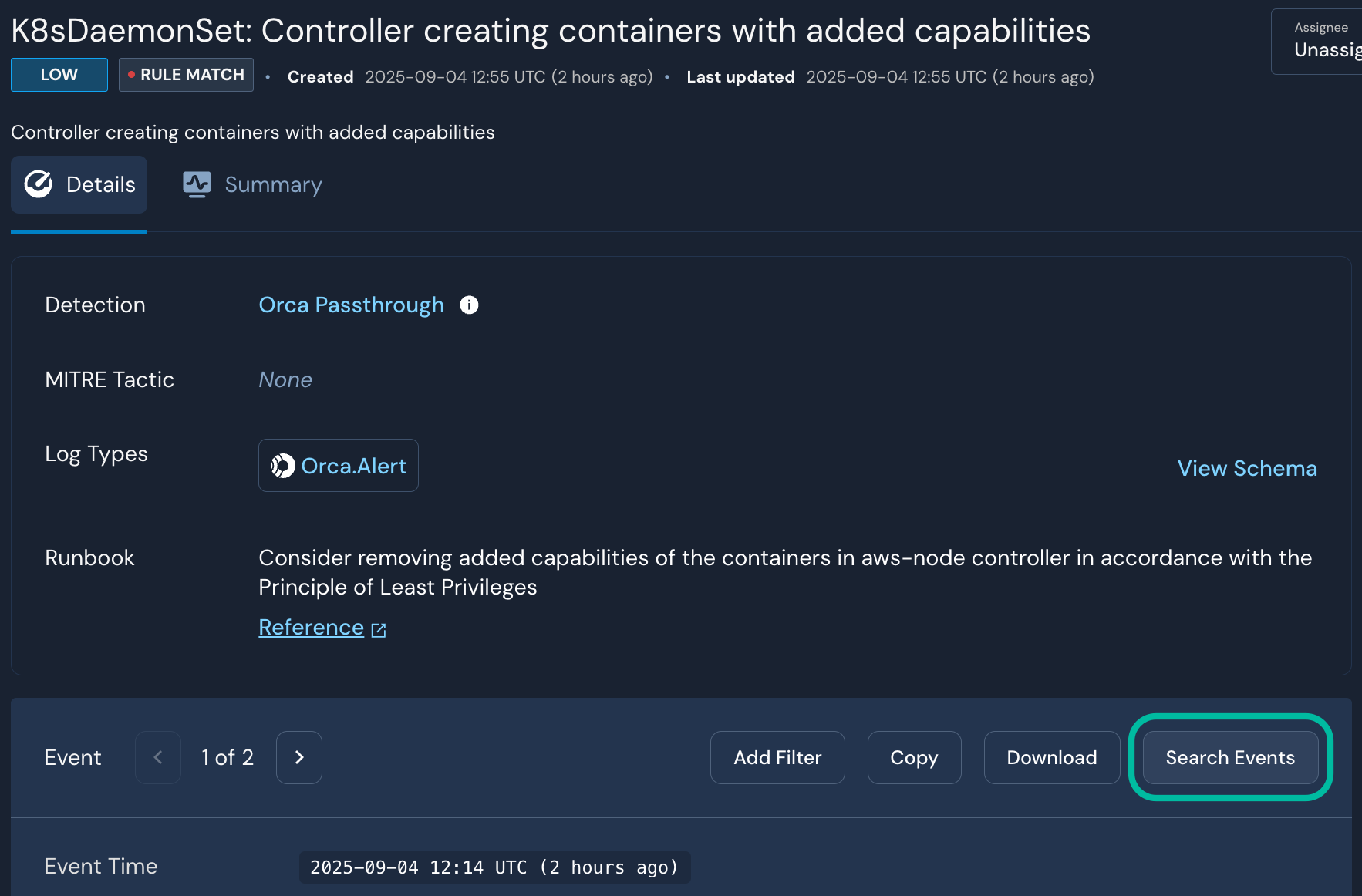
In the **Event** section, click **Search Events**. You'll be taken to [Search](/search/search-tool.md) where you'll see the events associated to the alert. From there, you can [pivot](/resources/help/glossary.md#pivot) around your data to investigate further.
## How to best search for a value across all your logs in Panther
There are two common scenarios when searching for a value across all your logs in Panther:
* (Recommended) [Performing an indicator search](#performing-an-indicator-search)
* [Performing a full text search](#performing-a-full-text-search)
Indicator searches are recommended when possible, as they search across significantly less data and are therefore more efficient. In both scenarios, however, there are recommendations for how to best search.
### Performing an indicator search
Performing an indicator search means searching for a value only in a specific [indicator field](/search/panther-fields.md#indicator-fields) (also known as a `p_any` field) across all logs. This type of search is possible if you know the value you're searching for has been extracted into a `p_any` field (i.e., your log schemas properly designate fields as [`indicators`](/data-onboarding/custom-log-types/reference.md#indicators)).
It is not required to know *which* indicator field the value would be found in, as [Search filter chips](#recommended-performing-an-indicator-search-in-search-using-filter-chips) can auto-detect the correct field.
You can execute an indicator search in Panther in the following ways:
* In Search ([using filter chips](#recommended-performing-an-indicator-search-in-search-using-filter-chips) or [PantherFlow](#performing-an-indicator-search-in-search-using-pantherflow))
* [Using the GraphQL API](#performing-an-indicator-search-using-the-graphql-api)
* [With Panther AI](#performing-an-indicator-search-using-panther-ai)
{% hint style="warning" %}
Do not use [Data Explorer](/search/data-explorer.md) to perform an indicator search by querying the `panther_views` database. `panther_views` is [planned for deprecation](/search/backend.md#panther-views).
{% endhint %}
#### (Recommended) Performing an indicator search in Search using filter chips
{% hint style="info" %}
Search (using filter chips) has built-in optimizations that make searching across all logs efficient.
{% endhint %}
You can execute an indicator search in [Search](/search/search-tool.md), using filter chips, in the following ways:
* When you know which indicator field the value would be found in: with the [database and table filters](/search/search-tool.md#using-database-table-and-date-range-filters) set to **Logs** and **All tables**, respectively, create a [key/value filter expression](/search/search-tool.md#key-value-filter-expression), where the key is an [indicator field](/search/panther-fields.md#indicator-fields).
* In the example below, AWS ARNs is the Console-friendly alias for `p_any_aws_arns`.
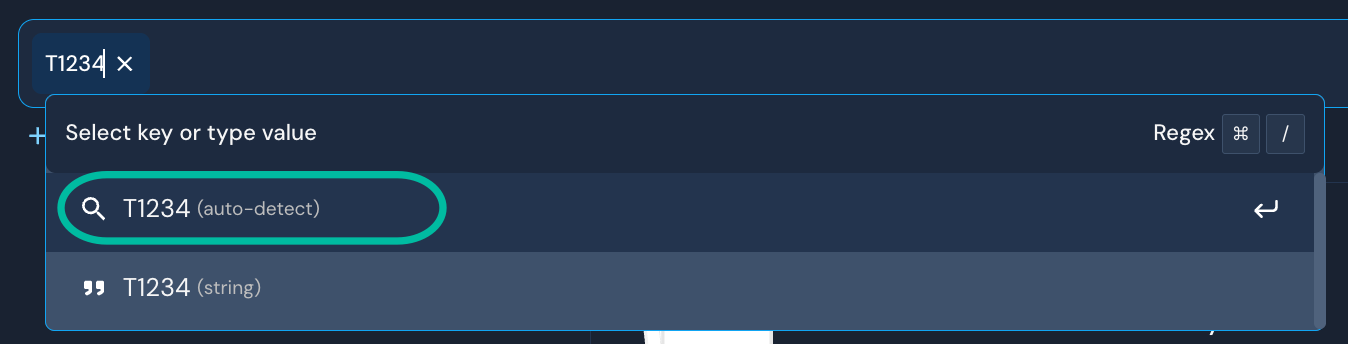
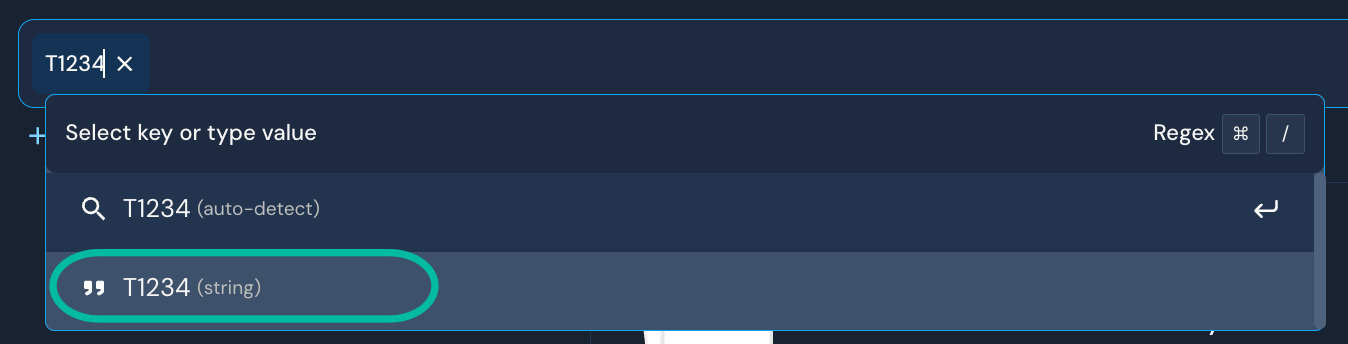
* When you don't know which indicator field the value would be found in: when entering the value in a filter chip, select **auto-detect**. In the example below, Search would detect that `T1234` is a MITRE ATT\&CK technique and search for the value only in `p_any_mitre_attack_techniques`.
* You can also [paste in a list of Indicators of Compromise (IoCs)](/search/search-tool.md#searching-indicators-of-compromise) and select **auto-detect**, and Search will automatically map each value to an indicator field, where possible.
#### Performing an indicator search in Search using PantherFlow
To execute an indicator search using [PantherFlow](/pantherflow.md), use the [`union`](/pantherflow/operators/union.md) operator to join all tables, then a [`where`](/pantherflow/operators/where.md) clause to limit the search to a specific indicator field.
Learn more in [Use `p_any` fields](/pantherflow/best-practices.md#use-p_any-fields).
{% hint style="warning" %}
PantherFlow currently does not skip tables that do not have the `p_any` field; it searches all tables. To mitigate this inefficiency, limit the tables you're searching to the tables of interest, instead of all tables.
```kusto
union panther_logs.public.aws_*
```
Further optimizations for performing indicator searches in PantherFlow with `union` are planned.
{% endhint %}
Example searching all logs:
```kusto
union panther_logs.public.*
| where p_event_time > time.ago(1d)
| where p_any_ip_addresses != null
| where arrays.intersection(p_any_ip_addresses, ['ip1', 'ip2'])
```
{% hint style="info" %}
You can generate PantherFlow queries using Panther AI—[learn more here](/search/search-tool.md#ai-powered-pantherflow-query-generation).
{% endhint %}
#### Performing an indicator search using the GraphQL API
Use the `executeIndicatorSearchQuery` [GraphQL API](/panther-developer-workflows/api/graphql.md) mutation.
See an example [here](/panther-developer-workflows/api/graphql/data-lake-queries.md#execute-a-search-query).
#### Performing an indicator search using Panther AI
In a [Panther AI](/ai.md) entry point, prompt it in [natural language](/resources/help/glossary.md#natural-language) to run a search. The correct [data search and analysis tool](/ai.md#data-search-and-analysis) and [indicator field](/search/panther-fields.md#indicator-fields) will automatically be chosen.
For example, if you entered `Find all logs where the IP XXX.XXX.XXX.XXX is present`, Panther AI would search for `XXX.XXX.XXX.XXX` across `p_any_ip_addresses`.
### Performing a full text search
A full text search means you're searching for a value across all columns in one or more tables in one or more [databases](/search/backend.md#available-databases).
{% hint style="warning" %}
In general, it's recommended to perform an [indicator search](#performing-an-indicator-search) instead of a free text search, as the latter is much less efficient and therefore takes much longer to complete (and is more costly).
{% endhint %}
You can execute a full text search in Panther in the following ways:
* [In Search, using filter chips](#performing-a-full-text-search-in-search-using-filter-chips)
* [In Search, using PantherFlow](#performing-a-full-text-search-in-search-using-pantherflow)
#### Performing a full text search in Search using filter chips
To perform a full text search with filter chips in Search, create a [free text filter expression](/search/search-tool.md#free-text-filter-expression).
When entering a value, do not select the **auto-detect** option.
#### Performing a full text search in Search using PantherFlow
To search across all logs in PantherFlow, use the [`union` operator](https://docs.panther.com/pantherflow/operators/union):
```kusto
union panther_logs.public.*
| where p_event_time > time.ago(1d)
| search 'alice' or 'bob'
```
It's recommended to improve query efficiency by following the principles in [PantherFlow Best Practices](/pantherflow/best-practices.md).
{% hint style="info" %}
You can generate PantherFlow queries using Panther AI—[learn more here](/search/search-tool.md#ai-powered-pantherflow-query-generation).
{% endhint %}
---
# Agent Instructions
This documentation is published with GitBook. GitBook is the documentation platform designed so that both humans and AI agents can read, navigate, and reason over technical content effectively. Learn more at gitbook.com.
## Querying This Documentation
If you need additional information that is not directly available in this page, you can query the documentation dynamically by asking a question.
Perform an HTTP GET request on the current page URL with the `ask` query parameter, and the optional `goal` query parameter:
```
GET https://docs.panther.com/search/threat-hunting.md?ask=&goal=
```
`ask` is the immediate question: it should be specific, self-contained, and written in natural language.
`goal` is optional and describes the broader end goal you are ultimately trying to accomplish on behalf of the user. GitBook uses it to tailor the answer towards what is most useful for that goal.
The response will contain a direct answer to the question and relevant excerpts and sources from the documentation.
Use this mechanism when the answer is not explicitly present in the current page, you need clarification or additional context, or you want to retrieve related documentation sections.

.png?alt=media&token=f03531d4-525d-4d77-97f1-af8e54124bec)