> For the complete documentation index, see [llms.txt](https://docs.panther.com/llms.txt). Markdown versions of documentation pages are available by appending `.md` to page URLs; this page is available as [Markdown](https://docs.panther.com/ko/data-onboarding/supported-logs/microsoftgraph.md).
# Microsoft Graph 로그
Panther는 Microsoft Graph API에서 로그를 직접 가져오는 것을 지원합니다
## 개요
Panther는 다음을 쿼리하여 Microsoft Graph 로그를 가져올 수 있습니다 [Microsoft Graph API](https://docs.microsoft.com/en-us/graph/api/resources/security-api-overview?view=graph-rest-1.0) 다음 Microsoft 보안 제품에서 보안 알러트를 가져오기 위해:
* Azure Active Directory Identity Protection
* Azure Information Protection
* Microsoft 365 (기본값, Cloud App Security, 사용자 지정 알러트)
* Microsoft Defender for Cloud Apps
* Microsoft Defender for Endpoint
* Microsoft Defender for Identity
* Microsoft Sentinel (이전 Azure Sentinel)
## Microsoft Graph 로그를 Panther에 온보딩하는 방법
### 사전 요구 사항
* Microsoft Defender for Endpoint 및 Identity 알러트는 알러트 이벤트를 Panther로 스트리밍하기 전에 추가 사용자 구성이 필요합니다. 참조 [Microsoft 문서](https://docs.microsoft.com/en-us/graph/api/resources/security-api-overview?view=graph-rest-1.0#alerts) 자세한 정보를 보려면.
* Microsoft Defender for Endpoint는 Microsoft Graph Security API에 필요한 것 외에 추가 사용자 역할을 필요로 합니다. Microsoft Defender for Endpoint 역할과 Microsoft Graph Security API 역할 모두에 속한 사용자만 Microsoft Defender for Endpoint 데이터에 액세스할 수 있습니다. 애플리케이션 전용 인증은 이 제한을 받지 않으므로, 애플리케이션 전용 인증 토큰을 사용하는 것이 좋습니다.
* Microsoft Defender for Identity 알러트는 Microsoft Defender for Cloud Apps 통합을 통해 사용할 수 있습니다. 이는 Unified SecOps에 가입하고 Microsoft Defender for Identity를 Microsoft Defender for Cloud Apps에 연결한 경우에만 Microsoft Defender for Identity 알러트를 받게 됨을 의미합니다.
### 1단계: Microsoft Entra ID 애플리케이션 만들기
1. 다음에 로그인하세요 [Azure 포털](https://portal.azure.com) 로 이동한 다음 **Microsoft Entra ID** 서비스.\

2. 클릭합니다 **앱 등록** 왼쪽 사이드바에서.
3. 클릭합니다 **새 등록**.
4. 다음 필드를 입력합니다:
* 애플리케이션에 대한 설명적인 이름을 입력하세요.
* 다음의 경우 **지원되는 계정 유형**, 선택 **이 조직 디렉터리의 계정만**.
5. 클릭합니다 **등록**.
6. 왼쪽 사이드바에서 **인증서 및 비밀**.
7. 클릭합니다 **새 클라이언트 비밀**.
* 비밀에 대한 설명을 추가합니다(예: Panther 통합).
* 다음으로 설정합니다. **만료** 필드를 `24개월`.
8. 클릭합니다 **추가**.
* 이 페이지를 벗어나면 Client Secret이 숨겨집니다. 다음을 복사해 두세요 **값** 필드를 안전한 위치에 저장하세요 - 이것을 여러분의 **Client Secret** Step 2에서 사용할 값으로 사용하게 됩니다.
9. 왼쪽 사이드바에서 **API 권한** 그런 다음 **권한 추가**.
10. 다음을 찾아 클릭하세요 **Microsoft Graph API**.
11. 클릭합니다 **위임된 권한** 그리고 다음을 선택하세요 **Security알러트.Read.All** 권한.
12. 클릭합니다 **애플리케이션 권한** 그리고 다음을 선택하세요 **Security알러트.Read.All** 권한.
13. 클릭합니다 **권한 추가** 페이지 하단에서.
14. 클릭합니다 **관리자 동의 부여** API 권한 페이지에서.\

15. 동의가 부여된 후 왼쪽 사이드바에서 **개요** 탭을 클릭하여 **애플리케이션(클라이언트) ID** 및 **디렉터리(테넌트) ID**.
* 다음 단계에서 Panther에 이를 제공해야 합니다.\

### 2단계: Panther에서 새 Microsoft Graph 소스 만들기
1. Panther Console의 왼쪽 탐색 모음에서 **로그 소스**.
2. 클릭합니다 **새로 만들기.**
3. 선택 **Microsoft Graph** 사용 가능한 로그 소스 목록에서.
4. 클릭합니다 **설정 시작**.
5. 다음 화면에서 필드를 입력하세요:
* **이름**: 소스의 설명이 되는 이름을 입력합니다. 예: `내 Microsoft Graph 로그`.
* **테넌트 ID**: 테넌트 ID를 입력하세요.
* **로그 유형**: 최소한 하나의 로그 유형을 선택하세요.
6. 클릭합니다 **설정**.
7. 다음 페이지에서 **자격 증명** 페이지에 다음을 입력하세요 **Client ID** 및 **Client Secret**.
* 다음 **Client Secret** 다음은 **값** 1단계에서 저장한 필드입니다.
8. 클릭합니다 **설정**.
9. Panther의 성공 화면으로 리디렉션됩니다:\\
* 선택적으로 하나 이상의 [디택션 팩](https://docs.panther.com/detections/panther-managed/packs).
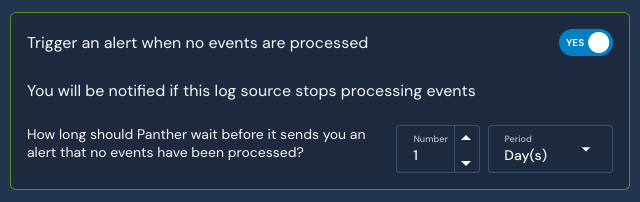
* 다음 **이벤트가 처리되지 않으면 알러트를 발생시키기** 설정의 기본값은 **예**. 일정 시간이 지난 후 로그 소스에서 데이터 흐름이 멈추면 알러트를 받게 되므로 이 설정을 활성화한 상태로 두는 것을 권장합니다. 이 시간 범위는 구성 가능하며 기본값은 24시간입니다.\\
## 지원되는 로그 유형
### MicrosoftGraph.Security알러트
Microsoft 또는 파트너 보안 솔루션이 고객 테넌트 내에서 식별한 잠재적 보안 문제를 나타냅니다.
참조: [보안 알러트에 대한 Microsoft 문서](https://learn.microsoft.com/en-us/graph/api/resources/security-alert?view=graph-rest-1.0).
```yaml
스키마: MicrosoftGraph.Security알러트V2
설명: /security/알러트_v2 엔드포인트(microsoft.graph.security.알러트)에서 반환되는 통합된 Microsoft 365 Defender 알러트.
참조 URL: https://learn.microsoft.com/en-us/graph/api/resources/security-알러트?view=graph-rest-1.0
필드:
- 이름: actorDisplayName
설명: 이 알러트와 관련된 악의적 행위자 또는 활동 그룹입니다.
유형: string
- 이름: additionalData
설명: 공급자별 속성으로 이루어진 자유 형식의 묶음입니다(키에 공백이 포함될 수 있으며, 원문 그대로 보존됩니다).
유형: json
- 이름: 알러트PolicyId
설명: 알러트를 생성한 정책의 ID이며, 특정 정책이 생성한 경우에만 채워집니다.
유형: string
- 이름: 알러트WebUrl
설명: Microsoft 365 Defender 포털의 알러트 페이지 URL입니다.
유형: string
- 이름: assignedTo
설명: 알러트의 소유자이며, 소유자가 할당되지 않은 경우 null입니다.
유형: string
- 이름: category
설명: 알러트가 속하는 MITRE ATT&CK 정렬 공격 킬 체인 범주입니다.
유형: string
- 이름: classification
설명: 이 알러트가 실제 위협을 나타내는지 지정합니다. 가능한 값: unknown, falsePositive, truePositive, informationalExpectedActivity, unknownFutureValue.
유형: string
- name: comments
설명: SecOps 팀이 생성한 댓글 배열입니다.
유형: array
요소:
유형: object
필드:
- 이름: comment
설명: 댓글 텍스트입니다.
유형: string
- 이름: createdByDisplayName
설명: 댓글을 작성한 사용자의 표시 이름입니다.
유형: string
- 이름: createdDateTime
설명: 댓글이 생성된 시각입니다.
유형: timestamp
시간 형식:
- rfc3339
- 이름: createdDateTime
설명: Microsoft 365 Defender가 알러트를 생성한 시각입니다.
유형: timestamp
시간 형식:
- rfc3339
- 이름: customDetails
설명: 값이 포함된 사용자가 정의한 사용자 지정 필드입니다.
유형: json
- 이름: description
설명: 알러트를 설명하는 문자열 값입니다.
유형: string
- 이름: 디택션Source
설명: 눈에 띄는 구성 요소나 활동을 식별한 디택션 기술 또는 센서입니다.
유형: string
- 이름: detectorId
설명: 알러트를 트리거한 디텍터의 ID입니다.
유형: string
- 이름: determination
설명: 조사 결과입니다. 가능한 값에는 apt, malware, securityTesting, multiStagedAttack 등이 있습니다.
유형: string
- 이름: evidence
설명: 알러트와 관련된 증거 모음입니다. @odata.type에 의해 구분됩니다.
유형: array
요소:
유형: object
필드:
- 이름: at_sign_odata_type
설명: 알러트Evidence 하위 유형을 식별하는 구분자(예: #microsoft.graph.security.deviceEvidence).
이름 바꾸기:
출처: '@odata.type'
유형: string
- 이름: createdDateTime
설명: 증거가 생성되어 알러트에 추가된 시각입니다.
유형: timestamp
시간 형식:
- rfc3339
- 이름: verdict
설명: 자동 조사 결과입니다. 가능한 값: unknown, suspicious, malicious, noThreatsFound, unknownFutureValue.
유형: string
- 이름: remediationStatus
설명: 증거에 대해 수행된 복구 작업의 상태입니다.
유형: string
- 이름: remediationStatusDetails
설명: 복구 상태에 대한 세부 정보입니다.
유형: string
- 이름: roles
설명: 증거가 알러트에서 수행하는 역할입니다(예: 공격자, 원본, 대상).
유형: array
요소:
유형: string
- 이름: detailedRoles
설명: 증거에 대한 세부 역할 설명자입니다.
유형: array
요소:
유형: string
- 이름: tags
설명: 증거와 연결된 사용자 지정 태그입니다.
유형: array
요소:
유형: string
- 이름: amazonAccountId
설명: AWS 계정 ID(amazonResourceEvidence).
유형: string
지표:
- aws_account_id
- 이름: amazonResourceId
설명: AWS ARN(amazonResourceEvidence).
유형: string
지표:
- aws_arn
- 이름: resourceId
설명: 리소스 ID(azureResourceEvidence).
유형: string
- 이름: resourceName
설명: 리소스 이름(azureResourceEvidence, amazonResourceEvidence, googleCloudResourceEvidence).
유형: string
- name: resourceType
설명: 리소스 유형(azureResourceEvidence, amazonResourceEvidence, googleCloudResourceEvidence).
유형: string
- 이름: fullResourceName
설명: 전체 리소스 이름(googleCloudResourceEvidence).
유형: string
- 이름: location
설명: 위치: ipEvidence의 경우 geoLocation 객체, googleCloudResourceEvidence의 경우 문자열.
유형: json
- 이름: locationType
설명: 위치 유형, 예: regional / zonal(googleCloudResourceEvidence).
유형: string
- 이름: projectId
설명: GCP 프로젝트 ID(googleCloudResourceEvidence).
유형: string
- 이름: projectNumber
설명: GCP 프로젝트 번호(googleCloudResourceEvidence).
유형: bigint
- 이름: name
설명: 리소스 이름(blobContainerEvidence, blobEvidence, kubernetesClusterEvidence, kubernetesNamespaceEvidence, kubernetesPodEvidence, kubernetesServiceEvidence, malwareEvidence).
유형: string
- 이름: url
설명: 리소스 URL(blobContainerEvidence, blobEvidence, urlEvidence).
유형: string
지표:
- url
- 이름: storageResource
설명: 기반 스토리지 계정 참조, azureResourceEvidence(blobContainerEvidence).
유형: json
- 이름: blobContainer
설명: 포함하는 blob 컨테이너, blobContainerEvidence(blobEvidence).
유형: json
- name: etag
설명: Blob ETag(blobEvidence).
유형: string
- 이름: fileHashes
설명: fileHash 객체 배열(blobEvidence).
유형: json
- 이름: args
설명: 컨테이너 명령 인수(containerEvidence).
유형: array
요소:
유형: string
- 이름: command
설명: 컨테이너 명령(containerEvidence).
유형: array
요소:
유형: string
- 이름: containerId
설명: 컨테이너 ID(containerEvidence).
유형: string
- 이름: image
설명: 컨테이너 이미지, containerImageEvidence(containerEvidence).
유형: json
- 이름: isPrivileged
설명: 컨테이너가 권한 있는 상태로 실행되는지 여부(containerEvidence).
유형: boolean
- 이름: pod
설명: 포함하는 pod, kubernetesPodEvidence(containerEvidence).
유형: json
- 이름: digestImage
설명: 다이제스트 이미지, containerImageEvidence(containerImageEvidence).
유형: json
- 이름: imageId
설명: 이미지 ID(containerImageEvidence).
유형: string
- 이름: registry
설명: 컨테이너 레지스트리 참조(containerImageEvidence).
유형: json
- 이름: azureAdDeviceId
설명: Microsoft Entra 디바이스 ID(deviceEvidence).
유형: string
- 이름: defenderAvStatus
설명: Defender Antivirus 상태(deviceEvidence).
유형: string
- 이름: deviceDnsName
설명: 디바이스 DNS 이름(deviceEvidence).
유형: string
지표:
- 호스트 이름
- 이름: dnsDomain
설명: 디바이스의 DNS 도메인(deviceEvidence).
유형: string
지표:
- domain
- 이름: firstSeenDateTime
설명: 디바이스가 처음 관찰된 시각(deviceEvidence).
유형: timestamp
시간 형식:
- rfc3339
- 이름: healthStatus
설명: 디바이스 상태(deviceEvidence).
유형: string
- 이름: hostName
설명: 호스트 이름(deviceEvidence).
유형: string
지표:
- 호스트 이름
- 이름: ipInterfaces
설명: 디바이스 인터페이스의 IP 주소(deviceEvidence).
유형: array
요소:
유형: string
지표:
- ip
- 이름: lastExternalIpAddress
설명: 마지막으로 관찰된 외부 IP(deviceEvidence).
유형: string
지표:
- ip
- 이름: lastIpAddress
설명: 마지막으로 알려진 IP(deviceEvidence).
유형: string
지표:
- ip
- 이름: loggedOnUsers
설명: 현재 디바이스에 로그인한 사용자(deviceEvidence).
유형: json
- 이름: mdeDeviceId
설명: Microsoft Defender for Endpoint 디바이스 ID(deviceEvidence, fileEvidence, processEvidence).
유형: string
- 이름: ntDomain
설명: NT 도메인(deviceEvidence).
유형: string
- 이름: onboardingStatus
설명: MDE 온보딩 상태(deviceEvidence).
유형: string
- 이름: osBuild
설명: OS 빌드 번호(deviceEvidence).
유형: bigint
- 이름: osPlatform
설명: OS 플랫폼(deviceEvidence).
유형: string
- 이름: rbacGroupId
설명: MDE RBAC 그룹 ID(deviceEvidence).
유형: int
- 이름: rbacGroupName
설명: MDE RBAC 그룹 이름(deviceEvidence).
유형: string
- 이름: resourceAccessEvents
설명: 디바이스의 리소스 액세스 이벤트(deviceEvidence).
유형: json
- 이름: riskScore
설명: 디바이스 위험 점수(deviceEvidence).
유형: string
- 이름: version
설명: 버전(deviceEvidence, kubernetesClusterEvidence).
유형: string
- 이름: vmMetadata
설명: 클라우드 호스팅 디바이스의 VM 메타데이터(deviceEvidence).
유형: json
- 이름: dnsServerIp
설명: DNS 서버, ipEvidence 객체(dnsEvidence).
유형: json
- 이름: domainName
설명: 조회된 DNS 도메인(dnsEvidence).
유형: string
지표:
- domain
- 이름: hostIpAddress
설명: 쿼리를 발행한 호스트, ipEvidence 객체(dnsEvidence).
유형: json
- 이름: ipAddresses
설명: 확인된 IP 주소, ipEvidence 배열(dnsEvidence).
유형: json
- 이름: 디택션Status
설명: 디택션 상태(fileEvidence, processEvidence).
유형: string
- 이름: fileDetails
설명: 파일의 세부 정보(fileEvidence).
유형: object
필드:
- 이름: 파일 이름
설명: 경로가 없는 파일 이름.
유형: string
- 이름: filePath
설명: 전체 파일 경로.
유형: string
- 이름: filePublisher
설명: 파일 게시자.
유형: string
- 이름: fileSize
설명: 바이트 단위의 파일 크기.
유형: bigint
- 이름: issuer
설명: 파일에 서명된 인증서의 발급자.
유형: string
- 이름: md5
설명: 파일의 MD5 해시.
유형: string
지표:
- md5
- name: sha1
설명: 파일의 SHA1 해시.
유형: string
지표:
- sha1
- 이름: sha256
설명: 파일의 SHA256 해시.
유형: string
지표:
- sha256
- 이름: sha256Ac
설명: 파일의 활성화 컨텍스트 SHA256.
유형: string
- 이름: signer
설명: 파일에 서명된 인증서의 서명자.
유형: string
- 이름: algorithm
설명: 해시 알고리즘(fileHashEvidence).
유형: string
- 이름: value
설명: 해시 값(fileHashEvidence).
유형: string
지표:
- md5
- sha1
- sha256
- 이름: countryLetterCode
설명: 2자리 국가 코드(ipEvidence).
유형: string
- 이름: ipAddress
설명: IP 주소(ipEvidence).
유형: string
지표:
- ip
- 이름: stream
설명: 스트림 메타데이터(ipEvidence, userEvidence).
유형: json
- 이름: cloudResource
설명: 클러스터의 기반 클라우드 리소스, 클라우드 리소스 증거(kubernetesClusterEvidence).
유형: json
- 이름: distribution
설명: 클러스터 배포판, 예: AKS / EKS / GKE (kubernetesClusterEvidence).
유형: string
- 이름: platform
설명: 클러스터 플랫폼(kubernetesClusterEvidence).
유형: string
- 이름: cluster
설명: 포함하는 클러스터, kubernetesClusterEvidence(kubernetesNamespaceEvidence).
유형: json
- 이름: labels
설명: 리소스 레이블(kubernetesNamespaceEvidence, kubernetesPodEvidence, kubernetesServiceEvidence).
유형: json
- 이름: containers
설명: Pod의 컨테이너, containerEvidence 배열(kubernetesPodEvidence).
유형: json
- 이름: controller
설명: Pod 컨트롤러 참조(kubernetesPodEvidence).
유형: json
- 이름: ephemeralContainers
설명: Pod의 임시 컨테이너(kubernetesPodEvidence).
유형: json
- 이름: initContainers
설명: Pod의 초기화 컨테이너(kubernetesPodEvidence).
유형: json
- 이름: namespace
설명: 포함하는 네임스페이스, kubernetesNamespaceEvidence(kubernetesPodEvidence, kubernetesServiceEvidence).
유형: json
- 이름: podIp
설명: Pod IP 주소, ipEvidence(kubernetesPodEvidence).
유형: json
- 이름: serviceAccount
설명: Pod 서비스 계정 참조(kubernetesPodEvidence).
유형: json
- 이름: clusterIP
설명: 클러스터 내부 서비스 IP(kubernetesServiceEvidence).
유형: string
지표:
- ip
- 이름: externalIPs
설명: 외부 IP(kubernetesServiceEvidence).
유형: array
요소:
유형: string
지표:
- ip
- 이름: selector
설명: 서비스 레이블 선택자(kubernetesServiceEvidence).
유형: json
- 이름: servicePorts
설명: 서비스 포트(kubernetesServiceEvidence).
유형: json
- 이름: serviceType
설명: 서비스 유형, 예: ClusterIP / NodePort / LoadBalancer (kubernetesServiceEvidence).
유형: string
- 이름: category
설명: 악성코드 범주, 예: trojan / ransomware (malwareEvidence).
유형: string
- 이름: files
설명: 악성코드와 관련된 파일, fileEvidence 배열(malwareEvidence).
유형: json
- 이름: processes
설명: 악성코드와 관련된 프로세스, processEvidence 배열(malwareEvidence).
유형: json
- 이름: destinationAddress
설명: 대상 ipEvidence 객체(networkConnectionEvidence).
유형: json
- 이름: destinationPort
설명: 대상 포트(networkConnectionEvidence).
유형: int
- 이름: protocol
설명: 네트워크 프로토콜(networkConnectionEvidence).
유형: string
- 이름: sourceAddress
설명: 원본 ipEvidence 객체(networkConnectionEvidence).
유형: json
- 이름: sourcePort
설명: 원본 포트(networkConnectionEvidence).
유형: int
- 이름: imageFile
설명: 프로세스의 이미지 파일(processEvidence).
유형: object
필드:
- 이름: 파일 이름
설명: 경로가 없는 파일 이름.
유형: string
- 이름: filePath
설명: 전체 파일 경로.
유형: string
- 이름: filePublisher
설명: 파일 게시자.
유형: string
- 이름: fileSize
설명: 바이트 단위의 파일 크기.
유형: bigint
- 이름: issuer
설명: 파일에 서명된 인증서의 발급자.
유형: string
- 이름: md5
설명: 파일의 MD5 해시.
유형: string
지표:
- md5
- name: sha1
설명: 파일의 SHA1 해시.
유형: string
지표:
- sha1
- 이름: sha256
설명: 파일의 SHA256 해시.
유형: string
지표:
- sha256
- 이름: sha256Ac
설명: 파일의 활성화 컨텍스트 SHA256.
유형: string
- 이름: signer
설명: 파일에 서명된 인증서의 서명자.
유형: string
- 이름: parentProcessCreationDateTime
설명: 부모 프로세스 생성 시간(processEvidence).
유형: timestamp
시간 형식:
- rfc3339
- 이름: parentProcessId
설명: 부모 프로세스 ID(processEvidence).
유형: bigint
- 이름: parentProcessImageFile
설명: 부모 프로세스 이미지 파일(processEvidence).
유형: object
필드:
- 이름: 파일 이름
설명: 경로가 없는 파일 이름.
유형: string
- 이름: filePath
설명: 전체 파일 경로.
유형: string
- 이름: filePublisher
설명: 파일 게시자.
유형: string
- 이름: fileSize
설명: 바이트 단위의 파일 크기.
유형: bigint
- 이름: issuer
설명: 파일에 서명된 인증서의 발급자.
유형: string
- 이름: md5
설명: 파일의 MD5 해시.
유형: string
지표:
- md5
- name: sha1
설명: 파일의 SHA1 해시.
유형: string
지표:
- sha1
- 이름: sha256
설명: 파일의 SHA256 해시.
유형: string
지표:
- sha256
- 이름: sha256Ac
설명: 파일의 활성화 컨텍스트 SHA256.
유형: string
- 이름: signer
설명: 파일에 서명된 인증서의 서명자.
유형: string
- 이름: processCommandLine
설명: 프로세스 명령줄(processEvidence).
유형: string
- 이름: processCreationDateTime
설명: 프로세스 생성 시간(processEvidence).
유형: timestamp
시간 형식:
- rfc3339
- 이름: processId
설명: 프로세스 ID(processEvidence).
유형: bigint
- 이름: userAccount
설명: 증거와 관련된 사용자 계정(processEvidence, userEvidence).
유형: object
필드:
- name: accountName
설명: 사용자 계정 이름.
유형: string
지표:
- username
- 이름: activeDirectoryObjectGuid
설명: 온프레미스 AD 개체 GUID.
유형: string
- 이름: azureAdUserId
설명: Microsoft Entra 사용자 개체 ID.
유형: string
- name: displayName
설명: 사용자 표시 이름.
유형: string
- 이름: domainName
설명: 사용자 도메인 이름.
유형: string
지표:
- domain
- 이름: userPrincipalName
설명: 사용자 주체 이름(UPN).
유형: string
지표:
- email
- 이름: userSid
설명: 사용자의 보안 식별자(SID).
유형: string
- 이름: resourceAccessEvents
설명: 사용자 계정과 관련된 리소스 액세스 이벤트.
유형: json
- 이름: firstActivityDateTime
필수: true
설명: 알러트와 관련된 가장 이른 활동입니다. p_event_time으로 사용됩니다.
유형: timestamp
시간 형식:
- rfc3339
이벤트 시간 여부: true
- 이름: id
필수: true
설명: 알러트에 할당된 고유 식별자.
유형: string
- 이름: incidentId
설명: 이 알러트와 관련된 인시던트의 고유 식별자.
유형: string
- 이름: incidentWebUrl
설명: Microsoft 365 Defender 포털의 인시던트 페이지 URL.
유형: string
- 이름: investigationState
설명: 자동화된 조사의 상태.
유형: string
- 이름: lastActivityDateTime
설명: 알러트와 관련된 최신 활동.
유형: timestamp
시간 형식:
- rfc3339
- 이름: lastUpdateDateTime
설명: 알러트가 마지막으로 업데이트된 시간입니다. p_event_time이 아니라 풀러가 페이지네이션 필드로 사용합니다.
유형: timestamp
시간 형식:
- rfc3339
- 이름: mitreTechniques
설명: MITRE ATT&CK 프레임워크에 연계된 공격 기법.
유형: array
요소:
유형: string
지표:
- mitre_attack_technique
- 이름: productName
설명: 알러트를 게시한 제품(예: 'Microsoft Defender for Cloud').
유형: string
- 이름: providerAlertId
설명: 해당 알러트를 생성한 보안 공급자 제품에 표시되는 알러트 ID.
유형: string
- 이름: recommendedActions
설명: 이 알러트가 생성된 경우 수행할 권장 대응 및 복구 작업.
유형: string
- 이름: resolvedDateTime
설명: 알러트가 해결된 시간.
유형: timestamp
시간 형식:
- rfc3339
- 이름: serviceSource
설명: 알러트를 생성한 서비스 또는 제품(예: microsoftDefenderForCloud, microsoftDefenderForEndpoint).
유형: string
- 이름: severity
설명: '자산에 대한 가능한 영향. 가능한 값: informational, low, medium, high, unknownFutureValue.'
유형: string
- 이름: status
설명: '알러트의 수명 주기 상태. 가능한 값: new, inProgress, resolved, unknownFutureValue.'
유형: string
- 이름: systemTags
설명: 알러트와 관련된 시스템 태그.
유형: array
요소:
유형: string
- name: tenantId
필수: true
설명: 알러트가 생성된 Microsoft Entra 테넌트.
유형: string
- 이름: threatDisplayName
설명: 이 알러트와 관련된 위협.
유형: string
- 이름: threatFamilyName
설명: 이 알러트와 관련된 위협 계열.
유형: string
- 이름: title
설명: 알러트를 설명하는 간단한 식별 문자열.
유형: string
```
---
# Agent Instructions
This documentation is published with GitBook. GitBook is the documentation platform designed so that both humans and AI agents can read, navigate, and reason over technical content effectively. Learn more at gitbook.com.
## Querying This Documentation
If you need additional information that is not directly available in this page, you can query the documentation dynamically by asking a question.
Perform an HTTP GET request on the current page URL with the `ask` query parameter, and the optional `goal` query parameter:
```
GET https://docs.panther.com/ko/data-onboarding/supported-logs/microsoftgraph.md?ask=&goal=
```
`ask` is the immediate question: it should be specific, self-contained, and written in natural language.
`goal` is optional and describes the broader end goal you are ultimately trying to accomplish on behalf of the user. GitBook uses it to tailor the answer towards what is most useful for that goal.
The response will contain a direct answer to the question and relevant excerpts and sources from the documentation.
Use this mechanism when the answer is not explicitly present in the current page, you need clarification or additional context, or you want to retrieve related documentation sections.