> For the complete documentation index, see [llms.txt](https://docs.panther.com/llms.txt). Markdown versions of documentation pages are available by appending `.md` to page URLs; this page is available as [Markdown](https://docs.panther.com/data-onboarding/data-transports/aws/sqs.md).
# SQS Source
Onboarding AWS SQS Logs as a Data Transport log source in the Panther Console
## Overview
Panther supports configuring [Amazon Simple Queue Service (SQS)](https://docs.aws.amazon.com/AWSSimpleQueueService/latest/SQSDeveloperGuide/welcome.html) as a Data Transport to pull events from your queue into your Panther account.
The steps below enable you to set up an SQS source and give you permissions to send data to that queue. Panther pulls events from that queue and allows you to write rules and run queries on the processed data.
{% hint style="info" %}
SQS has a [maximum message size](https://docs.aws.amazon.com/AWSSimpleQueueService/latest/SQSDeveloperGuide/quotas-messages.html) of 1,048,576 bytes (1 MiB). If you expect to send messages larger than this, consider using an [S3 source](/data-onboarding/data-transports/aws/s3.md) instead.
{% endhint %}
{% hint style="warning" %}
If you are a [Cloud Connected](/system-configuration/panther-deployment-types/cloud-connected.md) customer, create any log source infrastructure in a separate AWS account from the one your Panther deployment resides in.
{% endhint %}
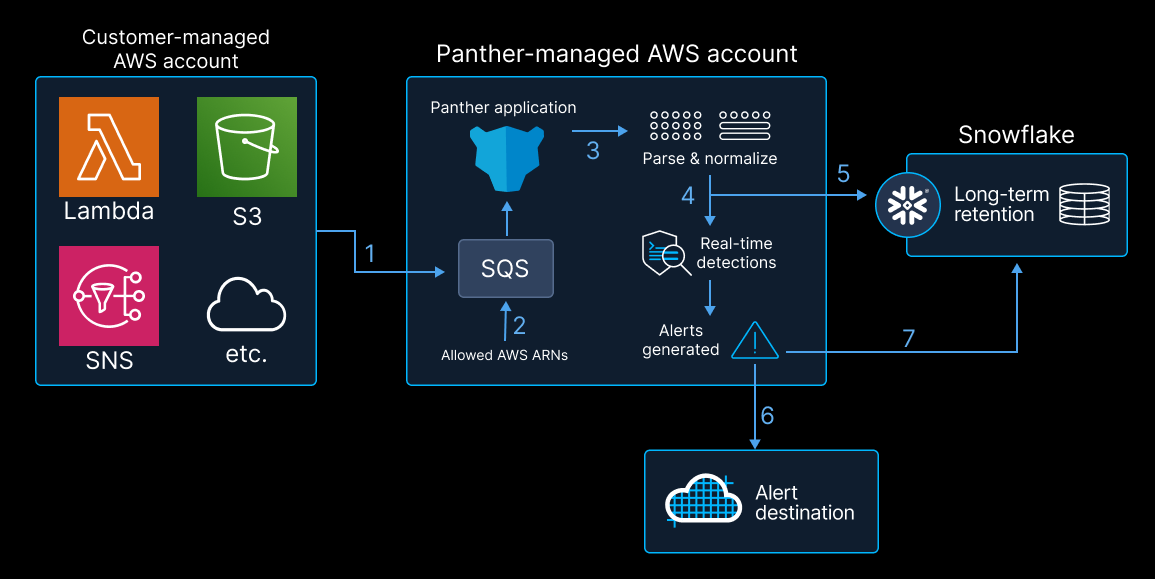
See the diagram below to understand how data flows from your application(s) into Panther using SQS (in [SaaS](/system-configuration/panther-deployment-types.md#saas)):
## How to set up an SQS log source in Panther
1. In the left-hand navigation bar of your Panther Console, click **Log Sources**.
2. In the upper right corner, click **Create New**.
3. Click the **AWS SQS Queue** tile.
4. On the **Configure** page, fill in the fields as follows:
* **Name**: Enter a descriptive name for your source.
* **Log Types**: From the drop-down, select all log types that you wish to monitor.
* **Allowed AWS Principals**: List all ARNs of the AWS principals that will be allowed to publish messages to your SQS queue.
* **Allowed Source ARNs:** List all ARNs of the AWS resources (SNS topics, S3 buckets, etc.) that can publish messages to your SQS queue.
* **Note**: If none of **Allowed AWS Principal ARNs** and **Allowed Source ARNs** properties are set, only Principals of the AWS account where Panther is deployed will be able to publish messages to the queue.
5. Click **Setup**.
6. On the **Log Format** page, select the [stream type](/data-onboarding/custom-log-types/reference.md#stream-type) of the incoming logs:
* **Auto**
* **Lines**
* **JSON**
* **JSON Array**
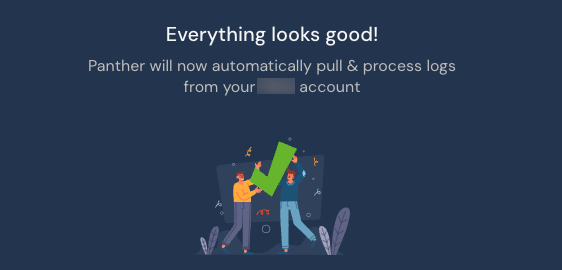
7. Click **Continue**. You will be directed to a success screen:
* You can optionally enable one or more [Detection Packs](https://docs.panther.com/detections/panther-managed/packs).
* If you have not done so already, click **Attach or Infer Schemas** to attach one or more schemas to the source.
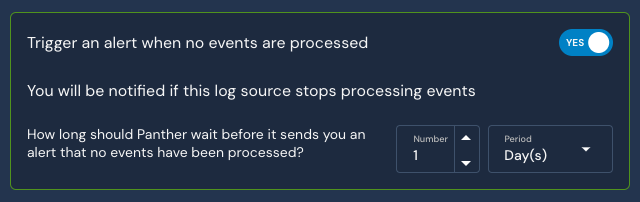
* The **Trigger an alert when no events are processed** setting defaults to **YES**. We recommend leaving this enabled, as you will be alerted if data stops flowing from the log source after a certain period of time. The timeframe is configurable, with a default of 24 hours.\\
To view your newly created source, click **View Log Source**.
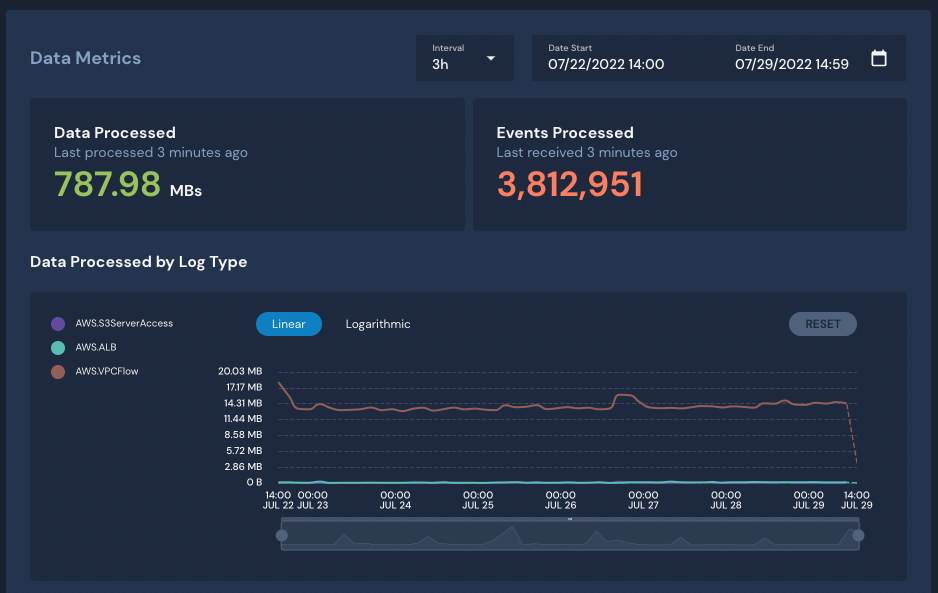
* Manage your AWS SQS source here for data and events processed, overall health, source schemas, alarm configuration, etc.
## Viewing ingested logs
After your log source is configured, you can search ingested data using [Search](/search/search-tool.md) or [Data Explorer](/search/data-explorer.md).
---
# Agent Instructions
This documentation is published with GitBook. GitBook is the documentation platform designed so that both humans and AI agents can read, navigate, and reason over technical content effectively. Learn more at gitbook.com.
## Querying This Documentation
If you need additional information that is not directly available in this page, you can query the documentation dynamically by asking a question.
Perform an HTTP GET request on the current page URL with the `ask` query parameter, and the optional `goal` query parameter:
```
GET https://docs.panther.com/data-onboarding/data-transports/aws/sqs.md?ask=&goal=
```
`ask` is the immediate question: it should be specific, self-contained, and written in natural language.
`goal` is optional and describes the broader end goal you are ultimately trying to accomplish on behalf of the user. GitBook uses it to tailor the answer towards what is most useful for that goal.
The response will contain a direct answer to the question and relevant excerpts and sources from the documentation.
Use this mechanism when the answer is not explicitly present in the current page, you need clarification or additional context, or you want to retrieve related documentation sections.